
1. Group Information
Member invitations and group management capabilities provide convenient access to SafetyDesigner for all members of your group. The Group Information page allows you to modify your group information, and only a group administrator account can access this menu.
- Step 1. Click Edit to change to editing mode.
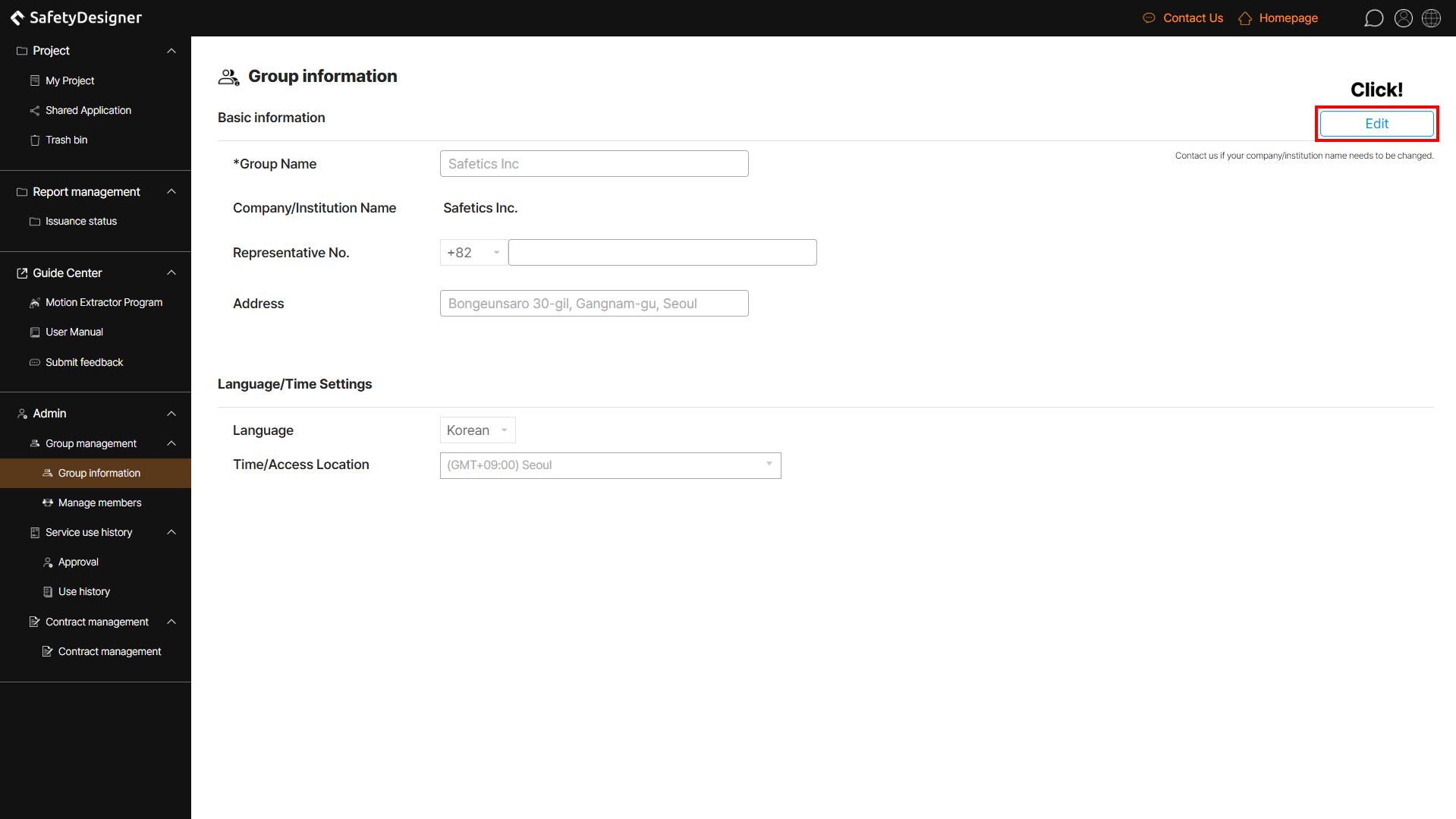
Group management – edit group information
- Step 2. Make changes and click Save.
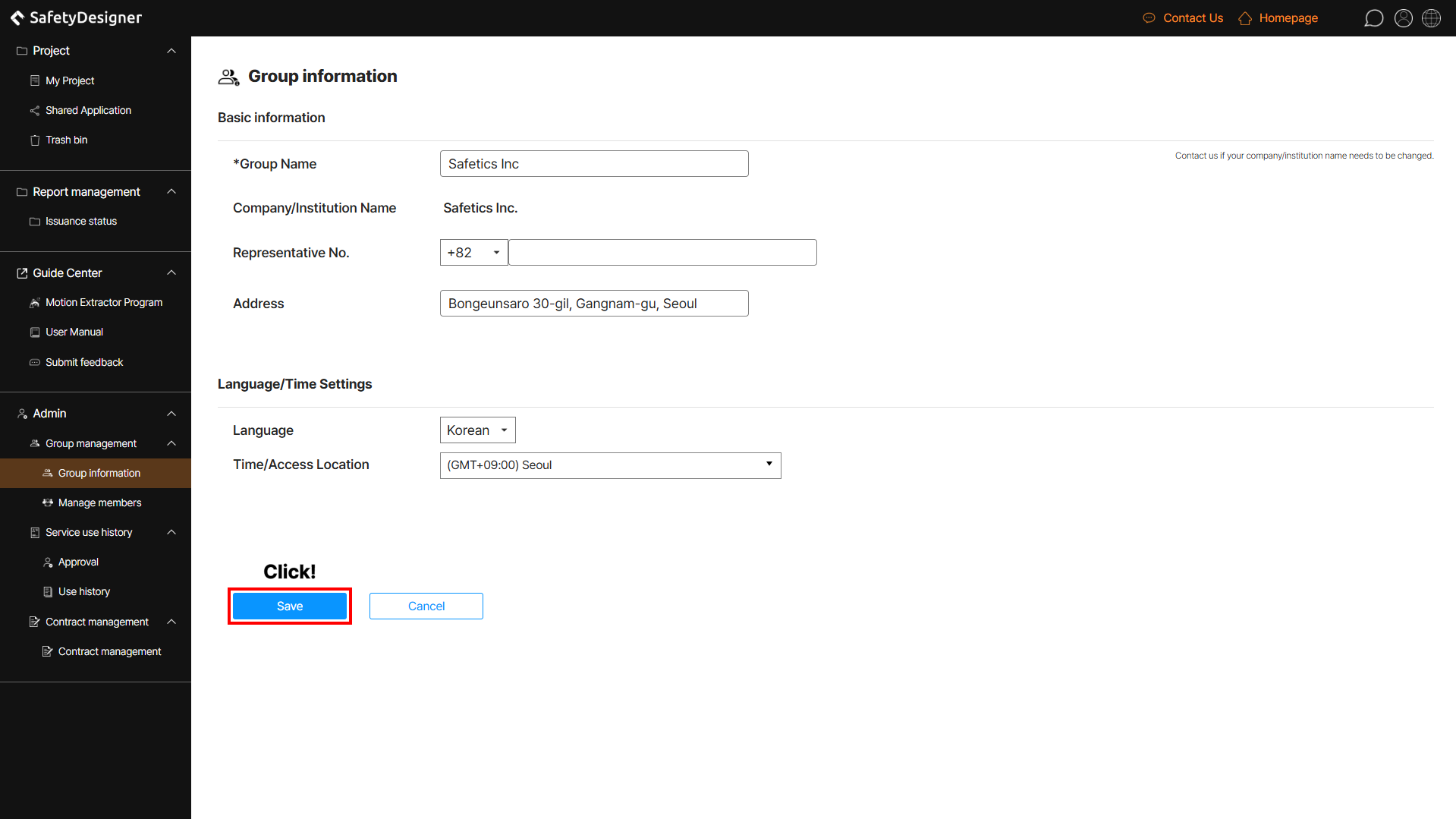
Group management – save group information
2. Manage Members
2-1. Inviting Members
- Step 1. On the Manage members page, click Invite members.
- Step 2. Enter the email address of the member you want to invite.
- Step 3. Press Add to register on the invitation standby list.
- Step 4. If you click Invite a member, an invitation mail will be sent to the members.
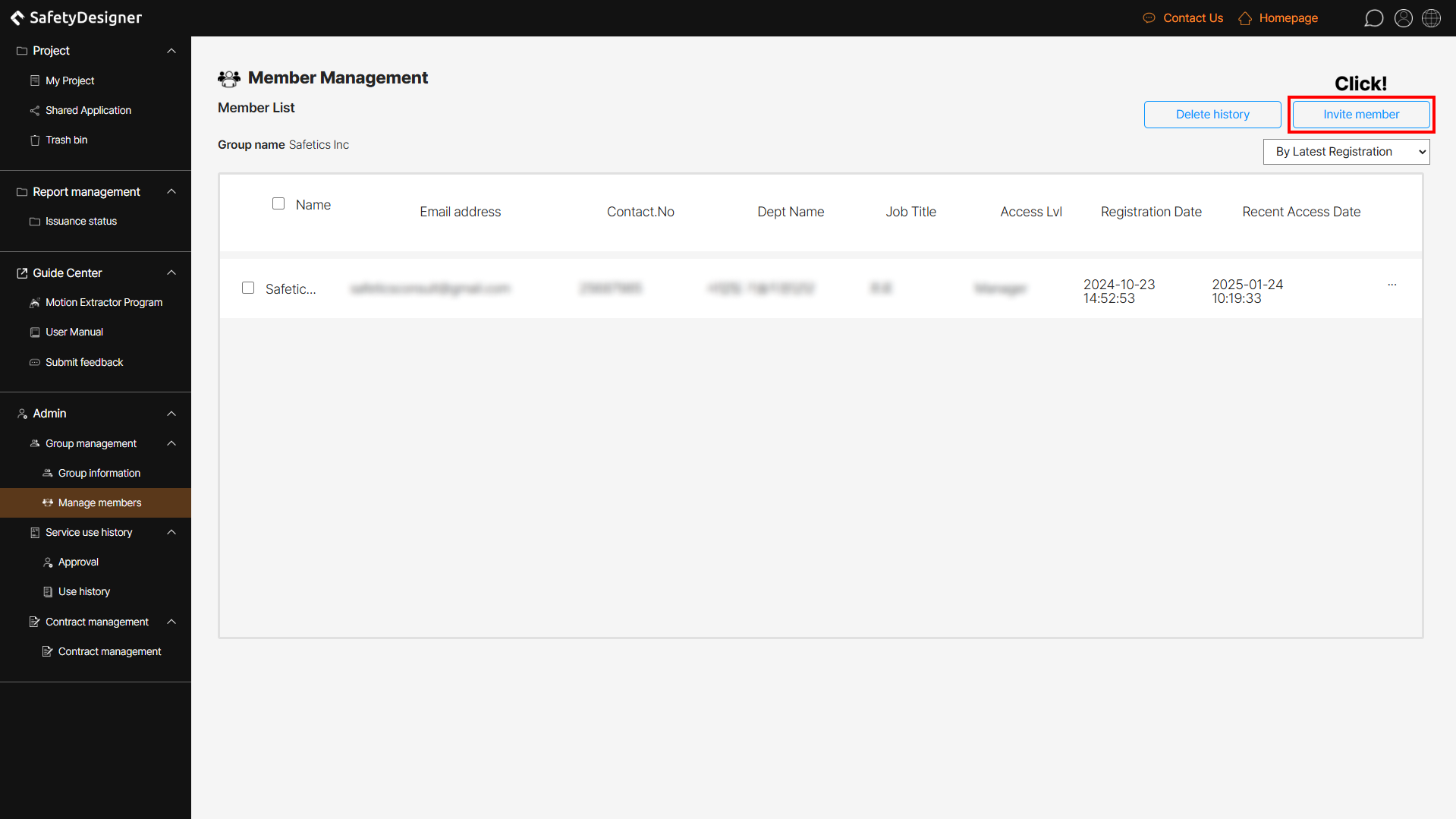
Manage members – invite members
2-2. Editing Member Information
- Step 1. Click View More for the member whose information you want to edit and choose Edit Information.
- Step 2. Click Edit to make the information editable.
- Step 3. When editing is complete, click Save.
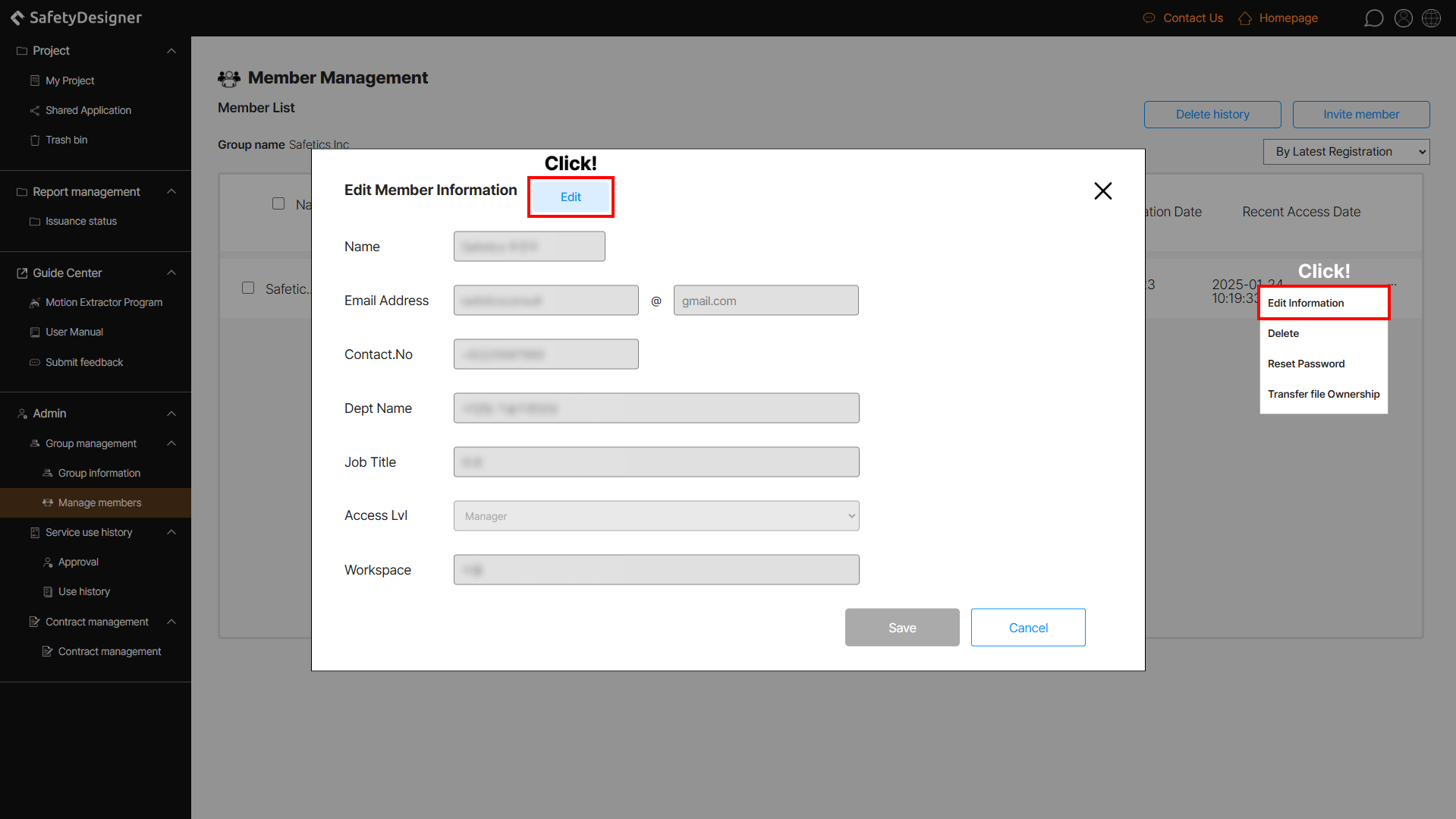
Manage members – member information
Tip
The higher the user’s authority, the more features are available without approval. See the table below for your reference.
| Rating | Approval Required Features |
|---|---|
| Member | Use of Paid Plan, Application sharing, Issue Collision Risk Analysis Report, Issue Risk Assessment Report |
| Manager | Use of Paid Plan, Issue Collision Safety Analysis Report, Issue Risk Assessment Report |
2-3. Delete Members and View Delete History
- Step 1. Click View More and choose Delete to delete the members you want to.
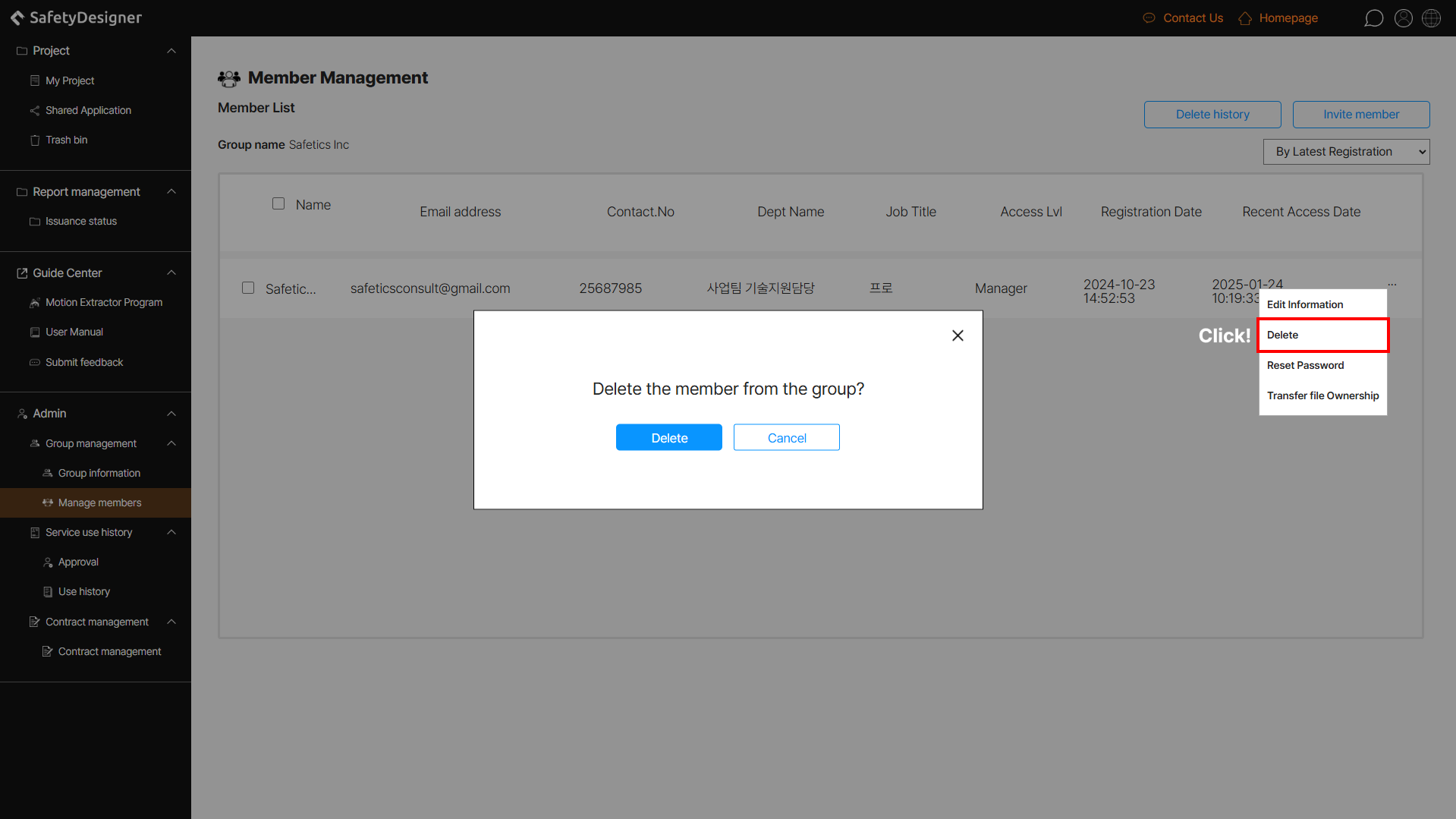
Manage members – delete members
Warning
Members who own 3D applications for which the Collision Safety Analysis Report or the Risk Assessment Report has been generated cannot be deleted. Be sure to transfer the application ownership to another member or administrator before deletion.
2-4. Resetting Member Passwords
- Step 1. Click Reset Password in the View More of members who want to change the passwords.
- Step 2. Enter a new password.
- Step 3. Confirm the new password to make sure it matches.
- Step 4. Click the Change button to change the password.
Warning
If the new password is equal to the previous one, you cannot change it.
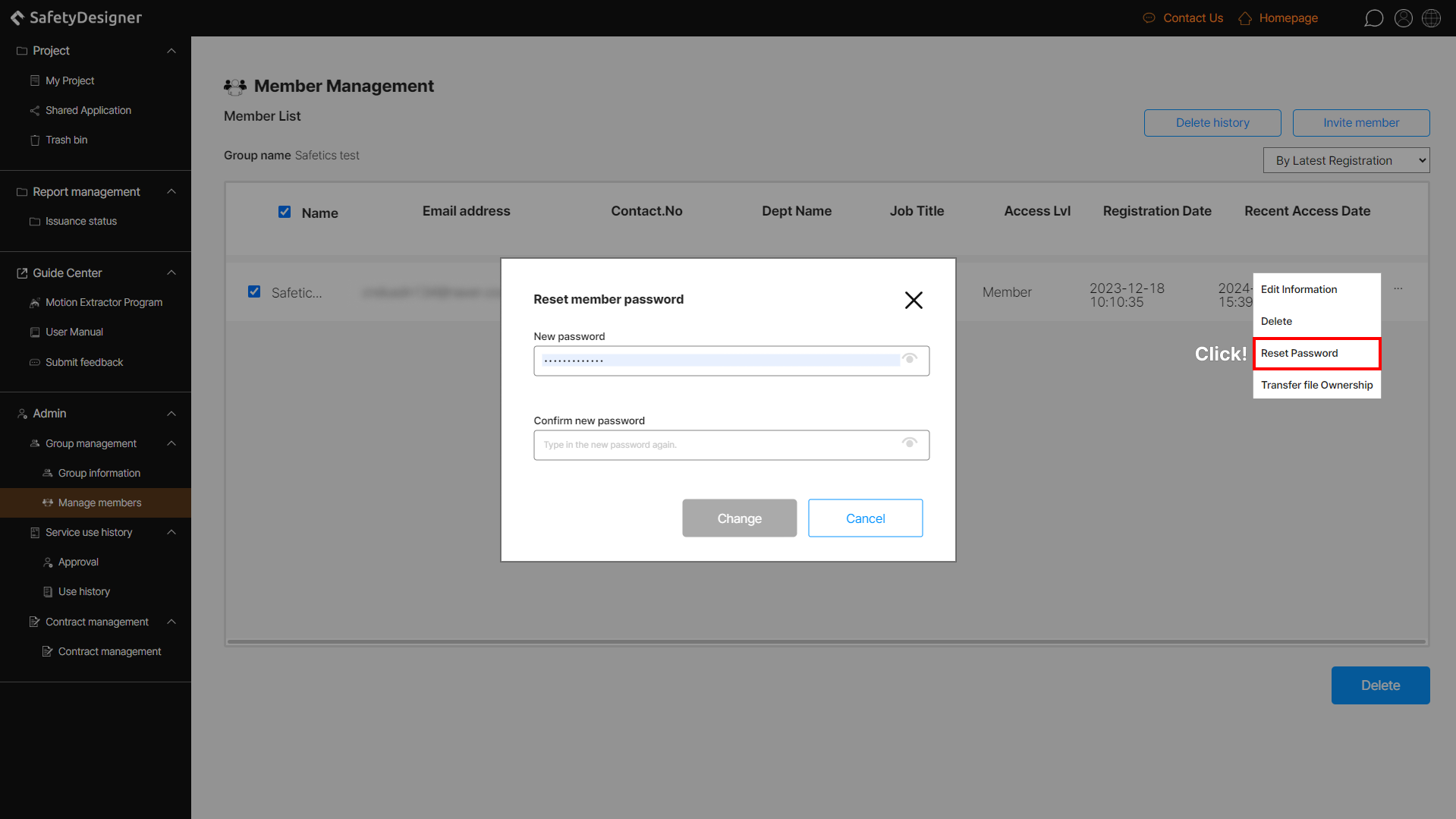
Manage members – reset member password
2-5. Transfer File Ownership
If you wish to transfer all applications owned by a member to another member within the group, use the ownership transfer feature. Select the member whose application ownership you want to transfer and proceed with the transfer.
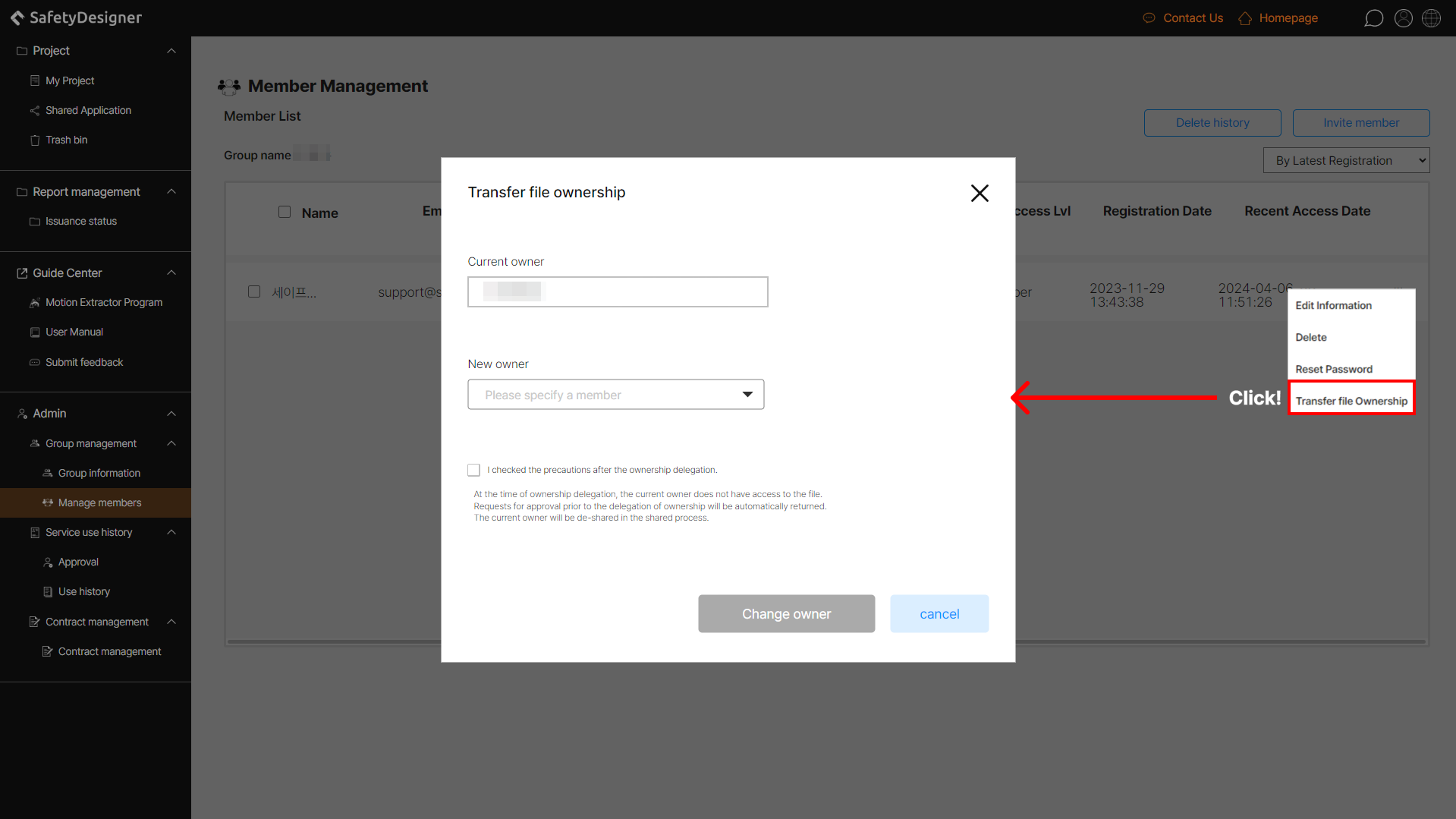
Transfer file ownership