
Skip to content
Help Center

Help Center

Safetics
⌘K
Home Open SafetyDesigner
🇺🇸 English
English 한국어

Handy Tips

  • What is Safety Analysis Recommendation?
  • What is 3D Mesher?
  • What are Safety Spaces?
  • What is Motion Create?
  • What is Motion Split?
  • What is Collision Point?
  • What is Soft Cover?
← Back

What is 3D Mesher?

When you upload a 3D facility file or gripper file to SafetyDesigner, a popup appears allowing you to modify the origin point of the file.
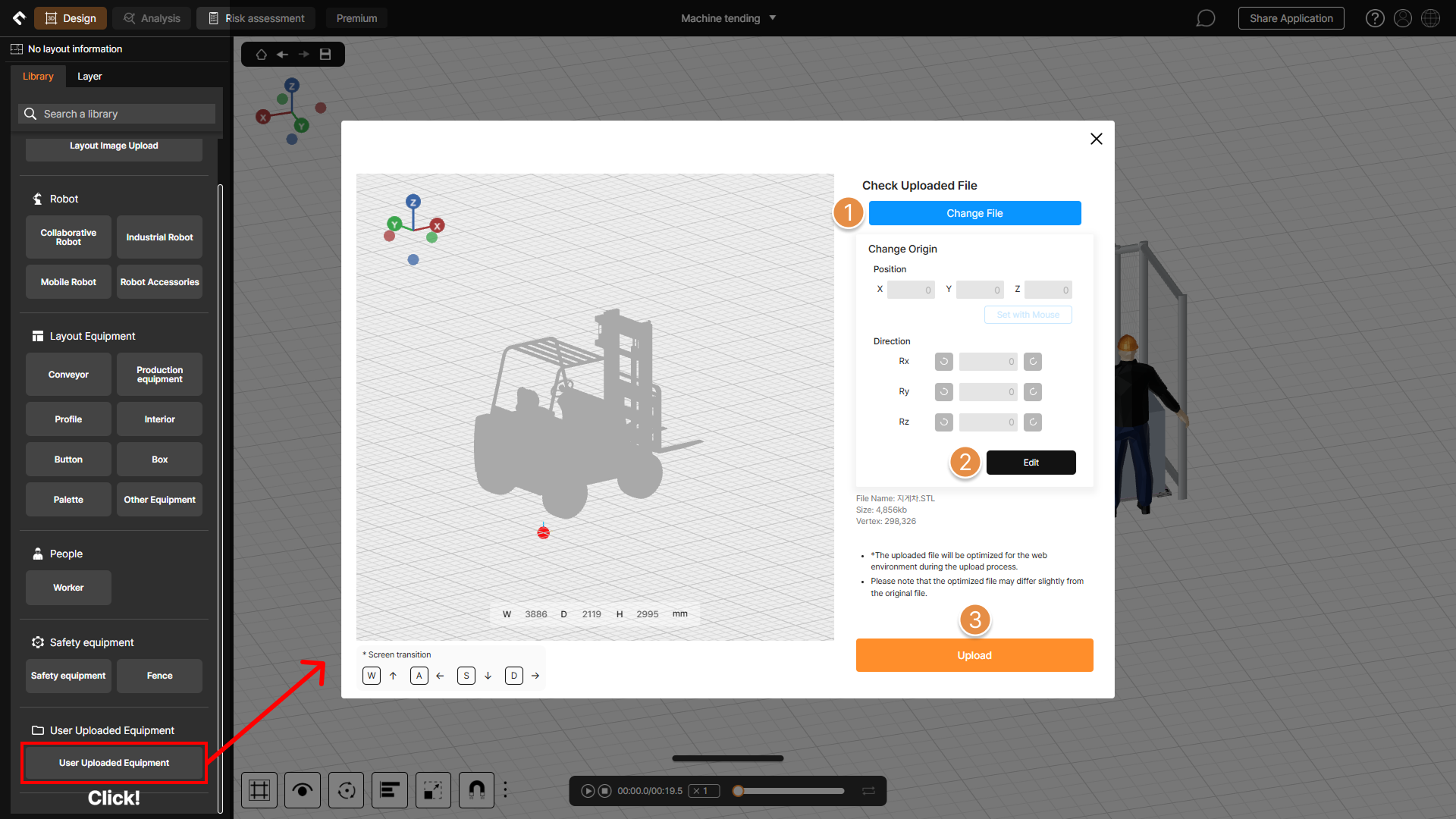
User facility upload – 3D mesher popup window

User facility upload – 3D mesher popup window

1. 3D Mesher Popup Layout

① Change File

Replace the uploaded 3D facility file or gripper file by uploading a new file.

② Edit
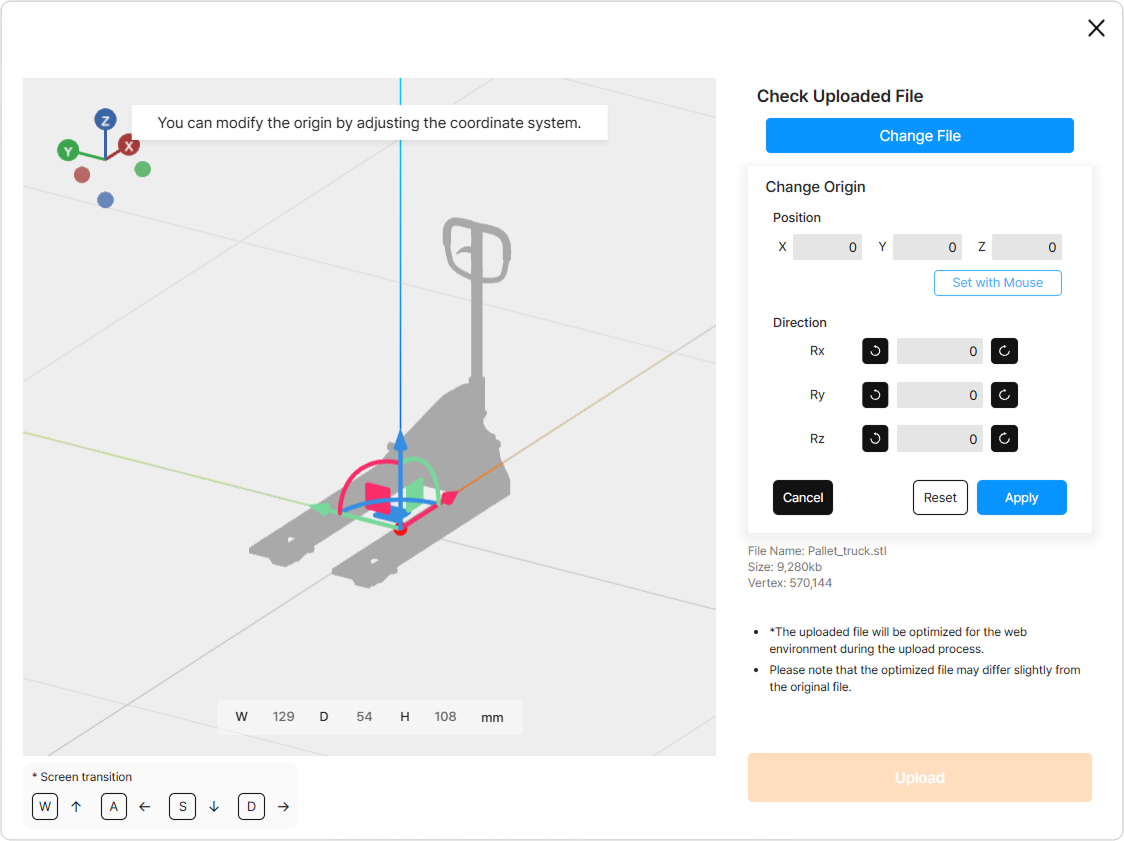
What is 3D Mesher? screen

Modify the coordinates of the origin point of the uploaded 3D file. Once modified, you can rotate, move, or resize the uploaded equipment within the 3D application design screen based on the modified origin.

To modify the origin point, you can either directly input numerical values in the fields on the right side of the popup window or use the pivot controller in the 3D screen of the popup window by dragging it with your mouse.

③ Upload
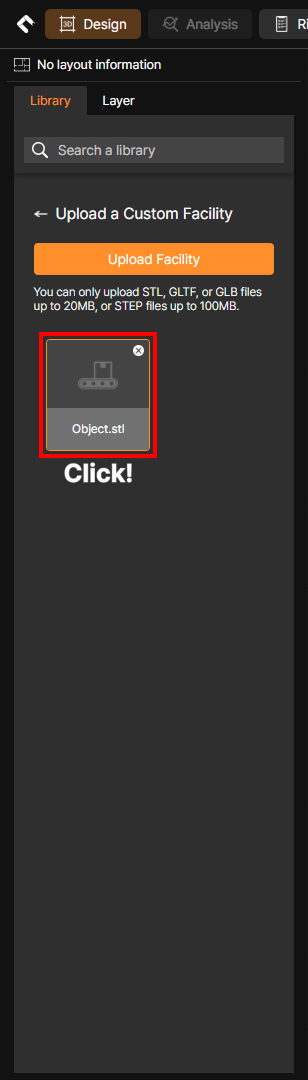
What is 3D Mesher? screen

After editing the origin point, click the Upload button to upload the file into the process. You can then view the uploaded facility file in the User upload facility list.

← PreviousWhat is Safety Analysis Recommendation?Next →What are Safety Spaces?
Safetics Safetics

Robot safety made simple

Product

SafetyDesigner Pricing

Guides

SafetyDesigner Guide TBM Guide

Resources

Insights FAQ Glossary

Company

Safetics Home Contact Us

Safetics Inc. · CEO : Heonseop Shin · Business Reg. No. 693-87-01568 · 2F, 43, Bongeunsa-ro 30-gil, Gangnam-gu, Seoul, Republic of Korea · Tel : 82-2-568-7985 · info@safetics.io

© 2026 Safetics, Inc.

Image you just passed