
If you have finished selecting the robot manufacturer and setting up the network of the extraction PC, follow the procedure below to record and save the motion.
- Step 1. Click Record Motion to start logging information about the robot motion. Run 1 cycle of the motion of the robot to be extracted, and then stop the robot.
- Step 2. If you have stopped the robot, click Stop Recording to save the extracted motion.
- Step 3. When you click Open save path, you will be taken to the folder where the extracted motion file (*.txt) is stored.
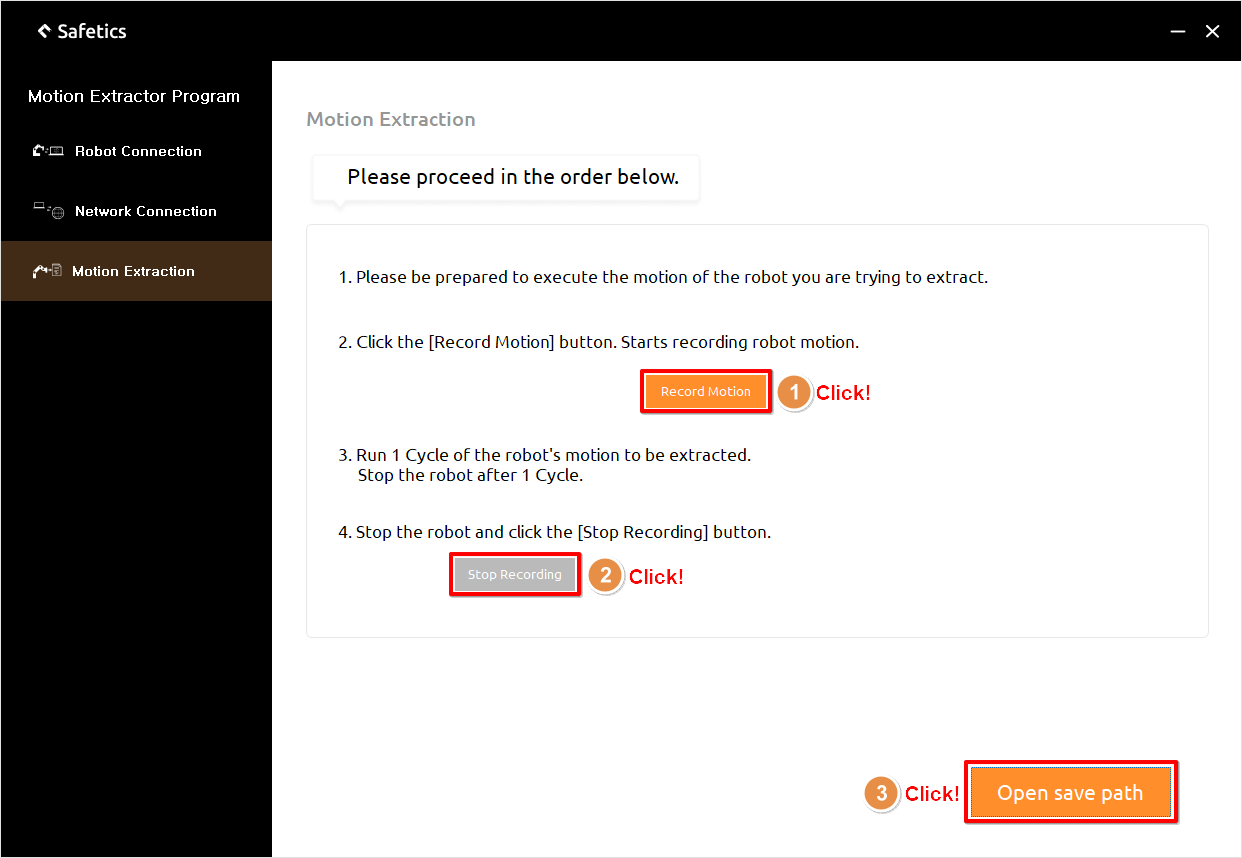
Motion extraction screen
- Step 4. Upload the extracted motion by clicking the Upload Robot Motion button on the Motion settings > Input Motion > Upload Motion of the SafetyDesigner.
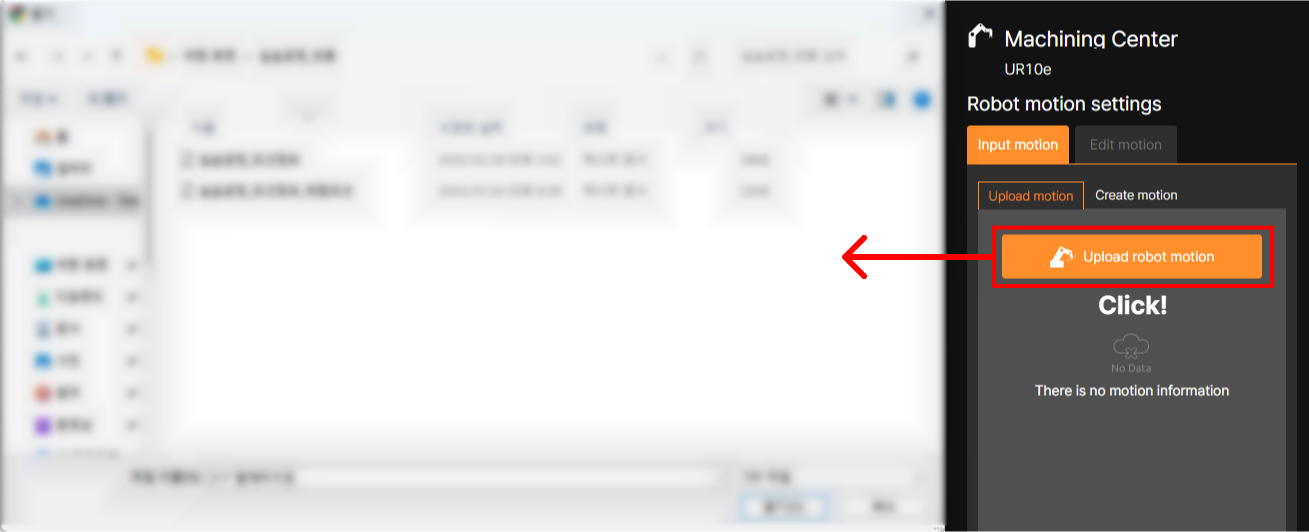
Upload robot motion
- Step 5. Using the playback UI at the bottom of the 3D screen, verify that the robot motion has been extracted correctly.
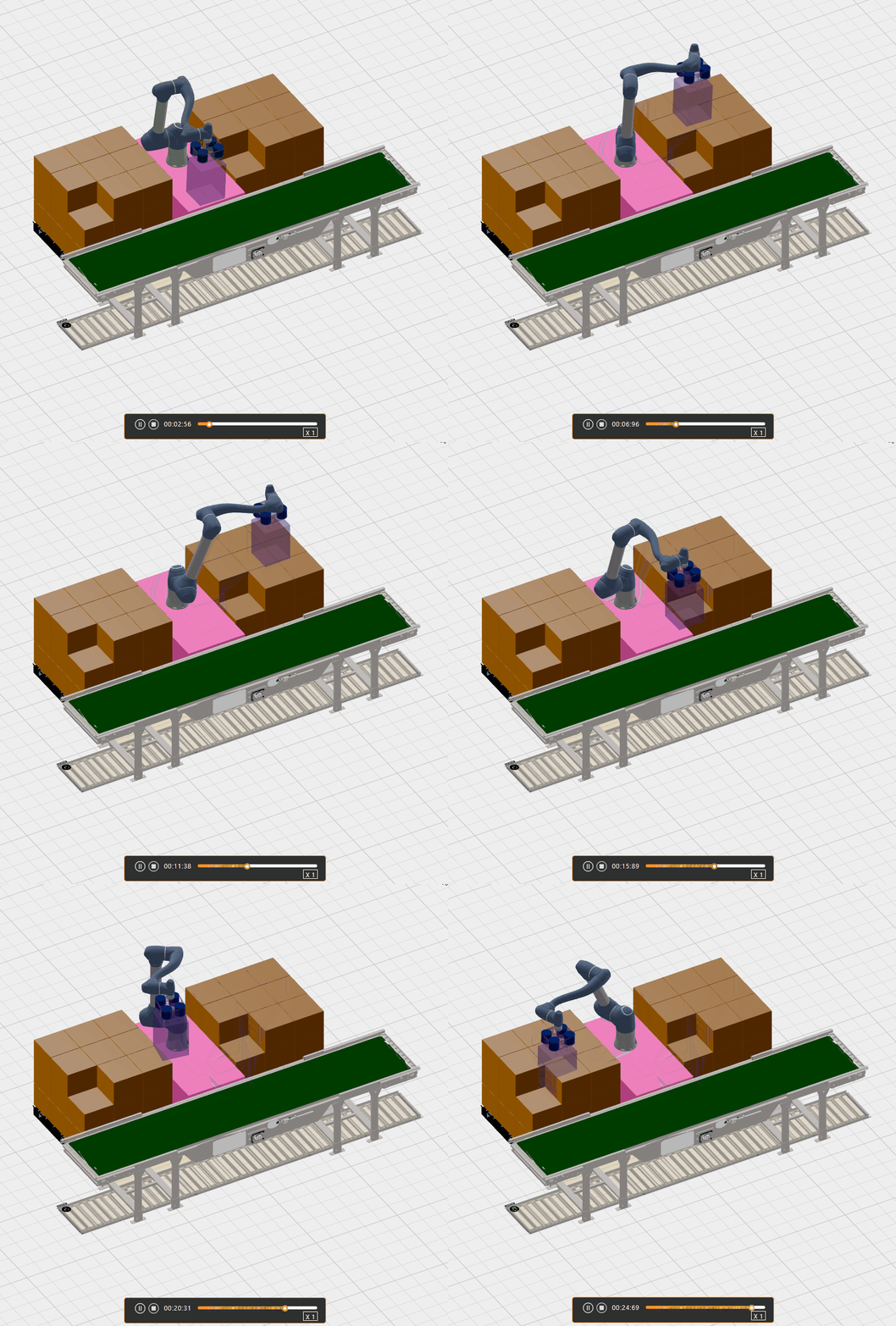
Verify motion in SafetyDesigner