If the result of the collision risk analysis performed based on the motion extracted from the robot is Pass, the result can be issued as a Collision Risk Analysis Report, which can be used to verify the dynamic collision safety between the robot and humans.
Tip
If you do not have a paid license agreement, check plans and pricing on the SafetyDesigner Pricing page.
1. Report Issuance Plan Registration
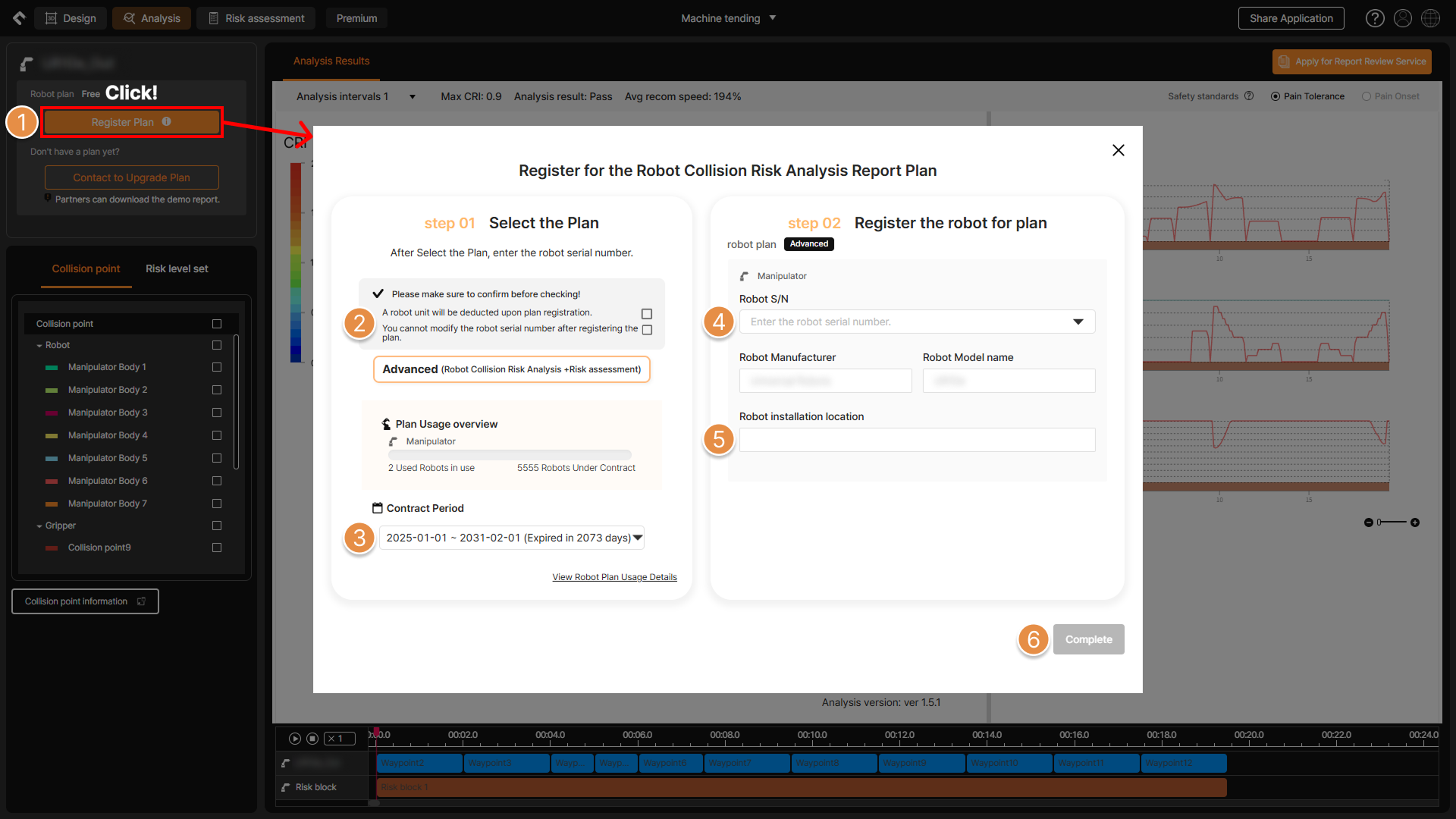
Report issuance plan registration
① Accounts with an active Collision Risk Analysis paid plan in SafetyDesigner will have the Register Plan button enabled. Click this button to issue the Collision Risk Analysis Report.
② Before registering the robot for report issuance, check the two key items and select the corresponding checkboxes for each.
Warning
When registering for report issuance, one robot will be deducted from the paid plan. Additionally, once the robot registration is completed, it cannot be deleted from the 3D screen, and the robot model and serial number cannot be changed, so please be cautious.
③ The paid plan contracted with SafetyDesigner will be automatically selected. If multiple plans have been contracted, make sure to check the issuance period before selecting the appropriate one.
④ Enter the serial number of the robot. Since this information will be included in the Collision Risk Analysis Report, ensure that it is entered accurately.
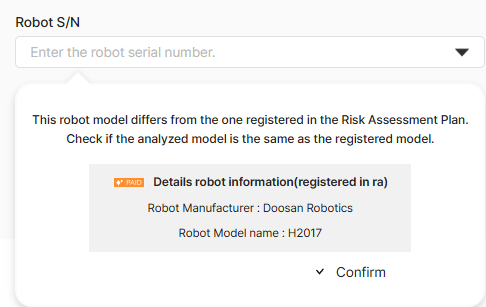
If a Risk Assessment Report has been printed beforehand, the robot serial number entered during the Risk Assessment can be selected. However, if the robot used for the Risk Assessment is a different model from the one used for the Collision Risk Analysis, a popup like the one below will appear.
⑤ Enter the address of the location where the robot is installed.
⑥ Clicking the Complete button will complete the robot registration for the report issuance.
2. Enter Report Issuance Information
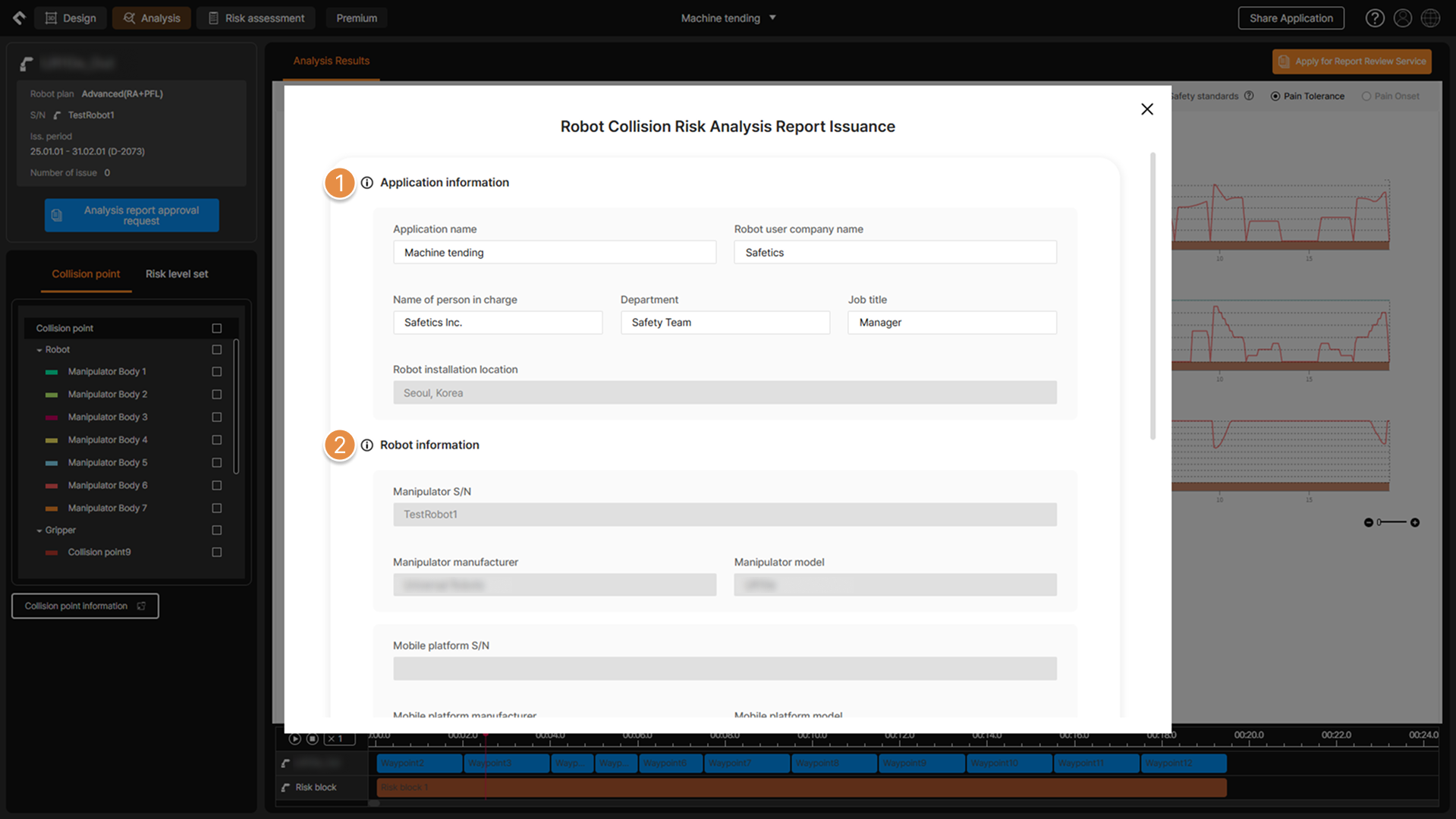
Enter report issuance information 1
① Enter the necessary information for report issuance, such as the application name, robot user company name, and person in charge information.
② The information for the robot to which the report will be issued is displayed and cannot be modified.
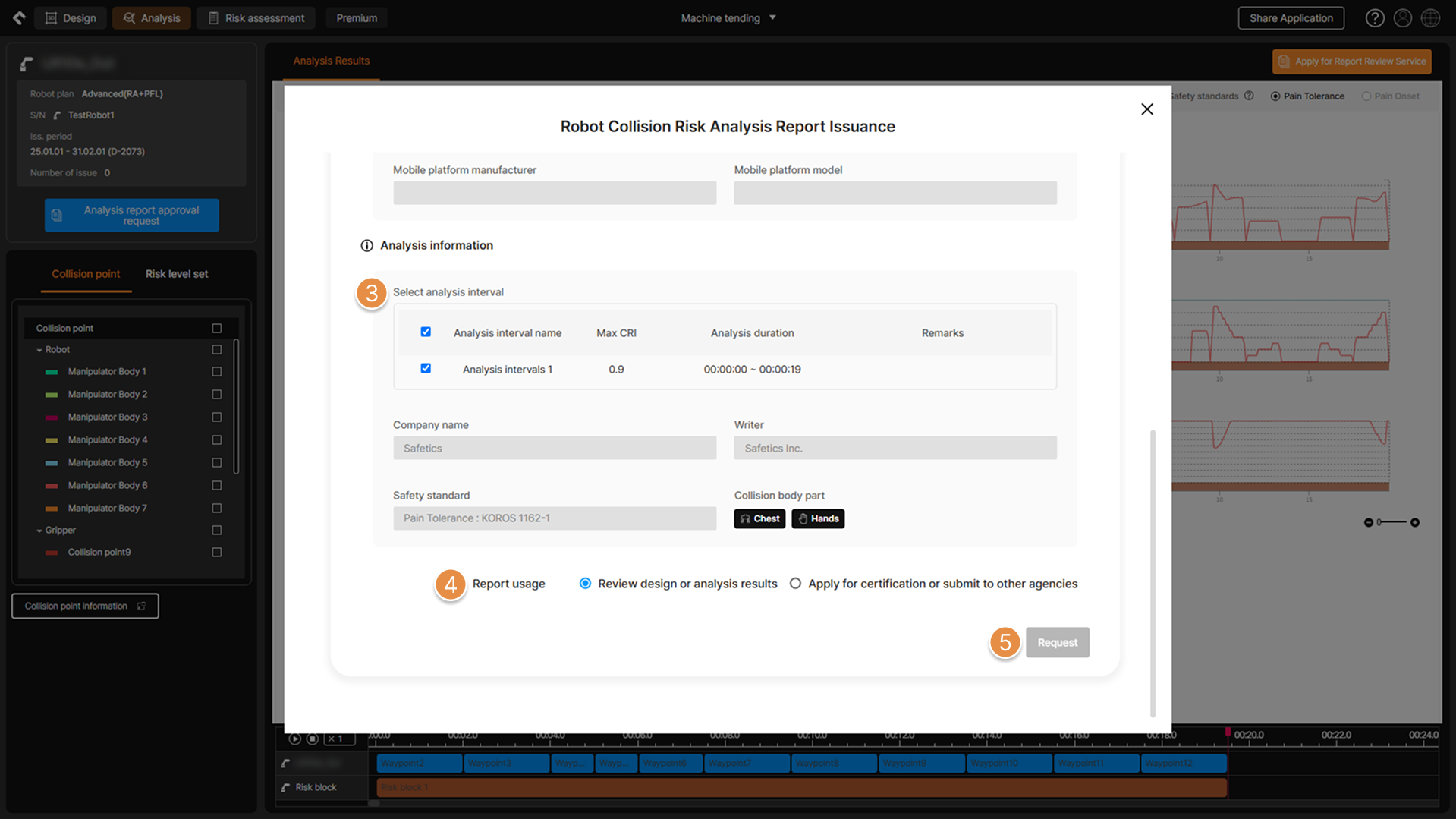
Enter report issuance information 2
③ The account information used for the analysis is automatically entered, and you can check the collision expected body part information set in the analysis standard and collaborative workspace. When robot motion is analyzed in multiple intervals, specific intervals for report generation can be selected.
④ Select the purpose of the report.
⑤ After verifying all the information required for the report issuance, click the Request button to proceed with the issuance.
Tip
Accounts affiliated with the group require approval from the group administrator for plan usage and Collision Risk Analysis Report issuance. For details on managing the group, see Group Service Use Management.
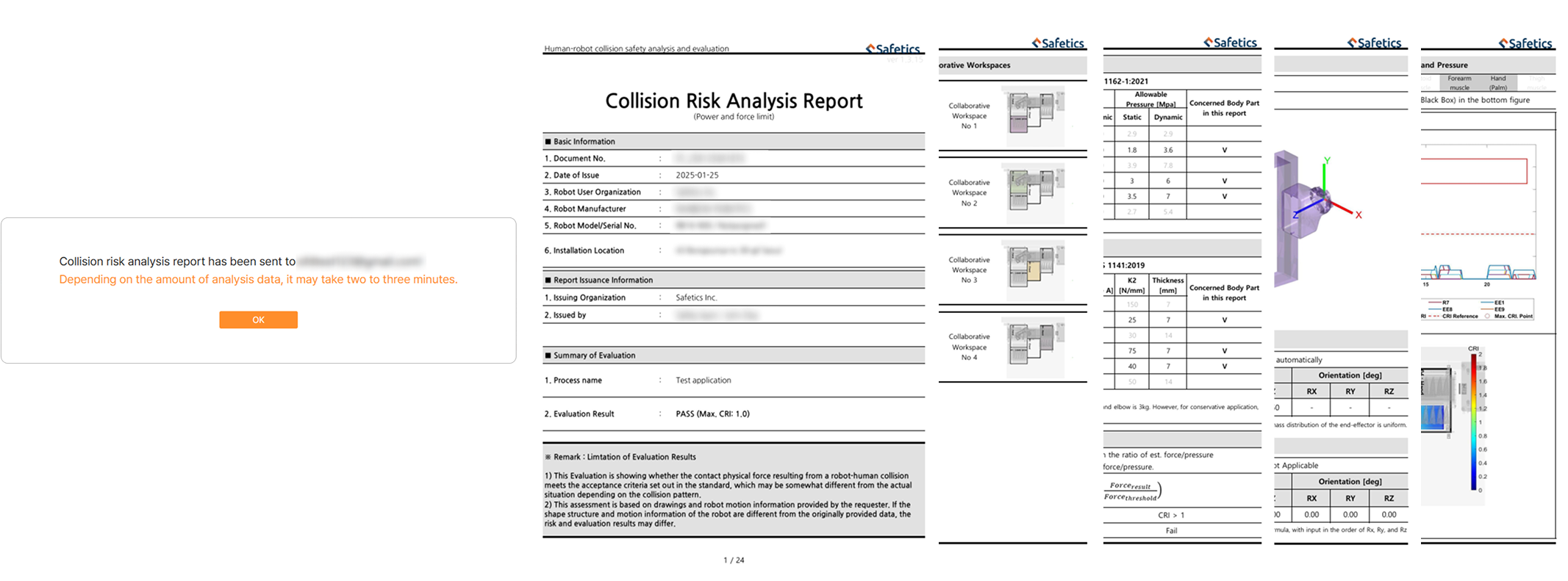
Issuance Confirmation and Sample Report
Once the report issuance is complete, the Collision Risk Analysis Report in PDF format will be sent to the email account used to log in to SafetyDesigner.