
1. Document Preparation List
You can print the risk assessment report generated by SafetyDesigner and use it for your Declaration of Conformity (DoC) or as part of the certification (CoC) procedure to verify compliance with ISO 10218-2.
On the first screen of Step 5. Generate report, SafetyDesigner provides guidance on various document types to help you easily prepare documents needed for certification or Declaration of Conformity.
Tip
If you do not have a paid license agreement, check plans and pricing on the SafetyDesigner Pricing page.
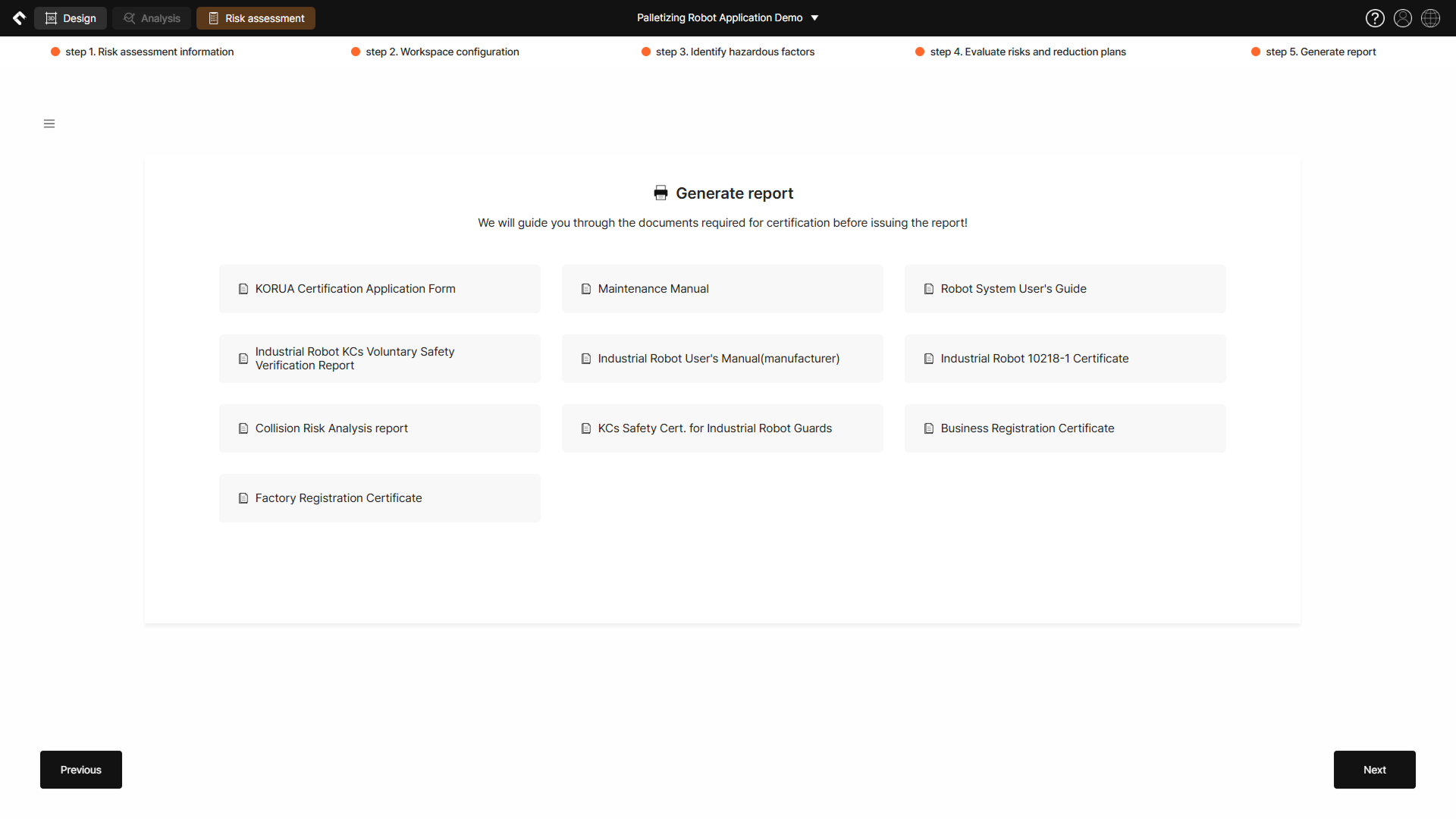
Step 5 – Generate report 1
① Korea Robot Users Association Certification Application
Click the Download button to download the application form for collaborative robot installation workplace safety certification.
Tip
For detailed information about the collaborative robot installation workplace safety certification program, see the Korea Robot Users Association website.
② Maintenance Manual
Click the Download button to download and use the robot system maintenance manual pre-form provided by Safetics.
2. Risk Assessment Report Issuance
Make sure that the robot system information, author, and assessment schedule entered in the risk assessment are correct, and then issue the report.
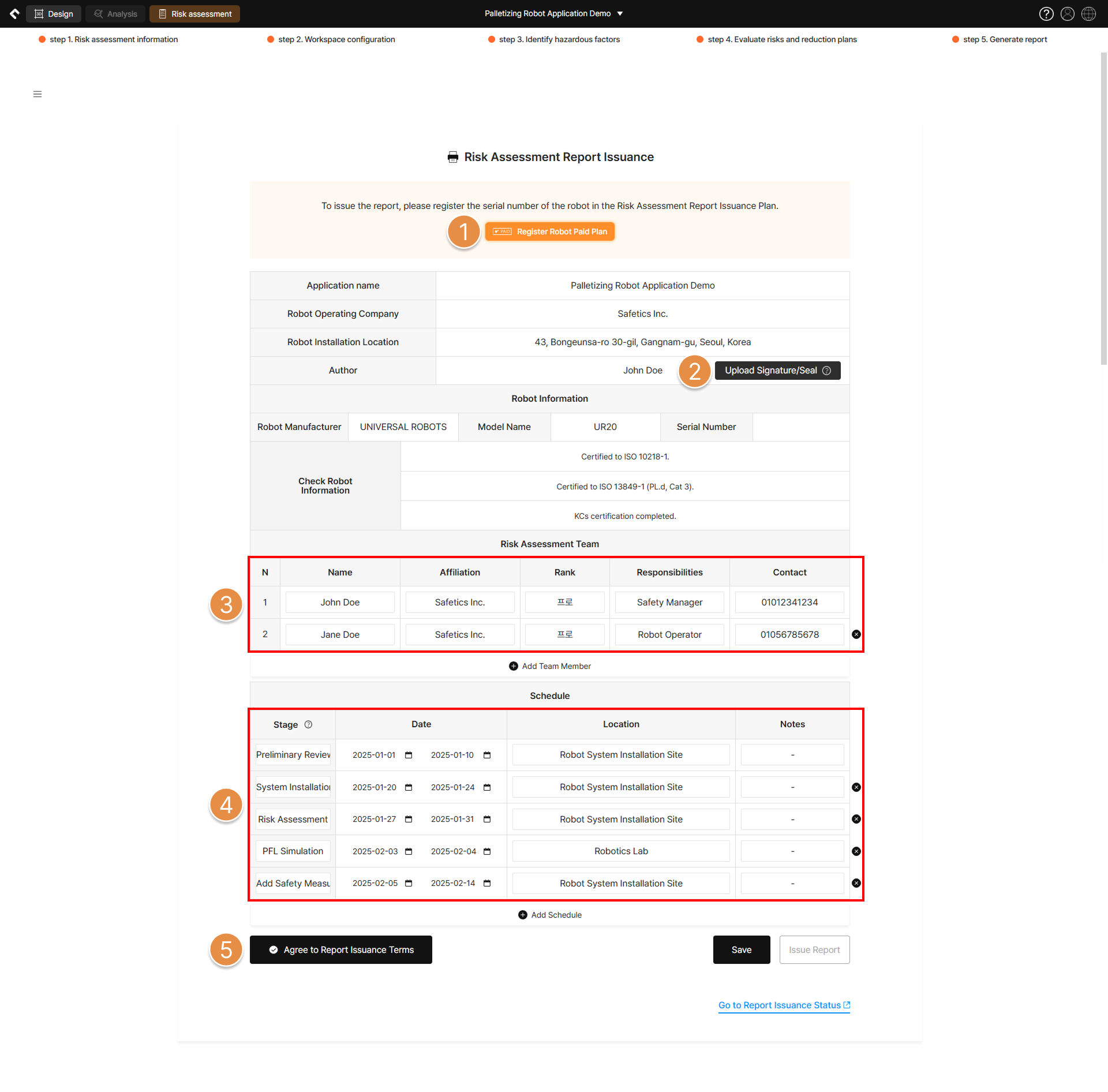
Step 5 – Generate report 2
① Register Robot Paid Plan
Register a paid plan for the robot being assessed to generate the risk assessment report.
Tip
A paid contract with Safetics is required to use the robot plan. For detailed information about robot plan usage, see the Report Issuance Plan Registration section on the Collision Risk Analysis Report Issuance page.
② Upload Signature/Seal
If necessary, you can upload the signature of the person responsible for preparing the risk assessment report. Typically, this is the signature of the safety manager at the robot system installation site.
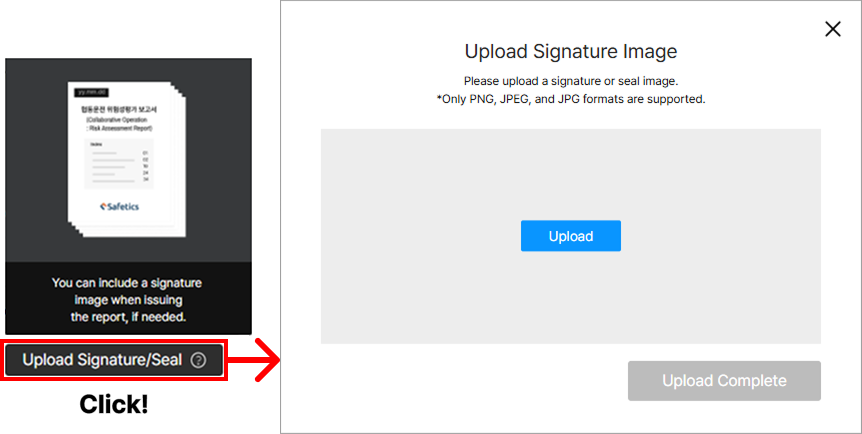
Click the Upload Signature/Seal button to upload a signature image in PNG, JPEG, or JPG format.
③ Risk Assessment Team
Enter the details of personnel involved in the risk assessment, including robot system installers, risk assessors, safety managers, and robot operators and users.
④ Schedule
Enter information about the tasks performed and the corresponding schedule for the risk assessment, from the initial review stage of robot installation to the current date.
⑤ Agree to Report Issuance Terms
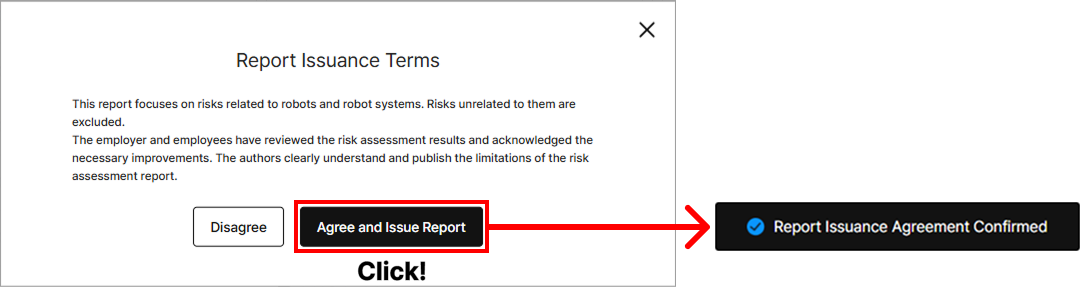
Click the Agree and Issue Report button to agree to the report issuance terms. Once agreed, the Issue Report button on the right becomes active.
3. Review Issued Report
The report will be sent to the email address associated with your SafetyDesigner account. Issuing the report typically takes 5 to 10 minutes.
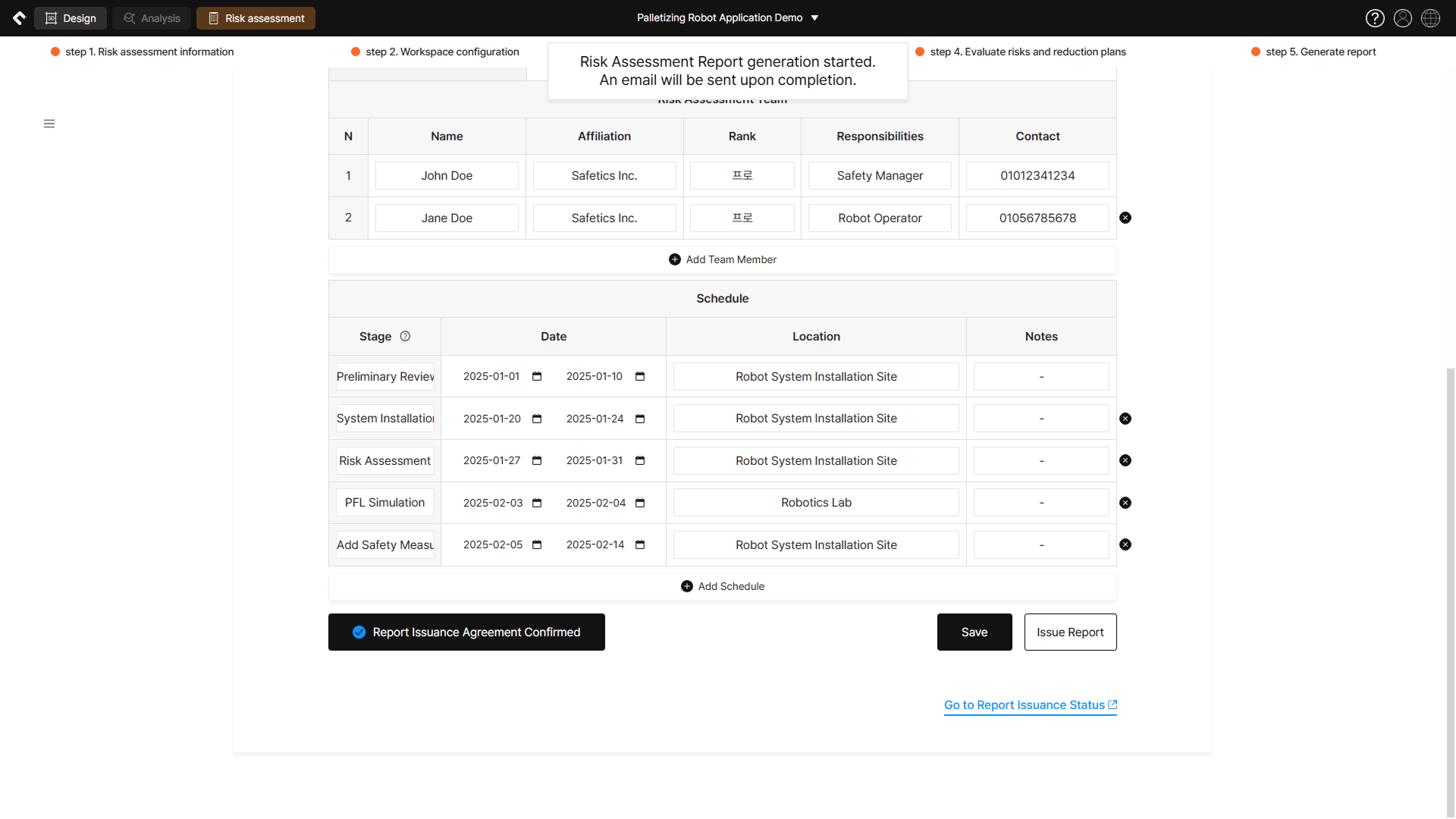
Step 5 – Generate report 3
The risk assessment report is issued in PDF format, automatically incorporating the risk assessment information entered in SafetyDesigner. After reviewing the generated report, you can correct any errors and reissue the report multiple times as needed.
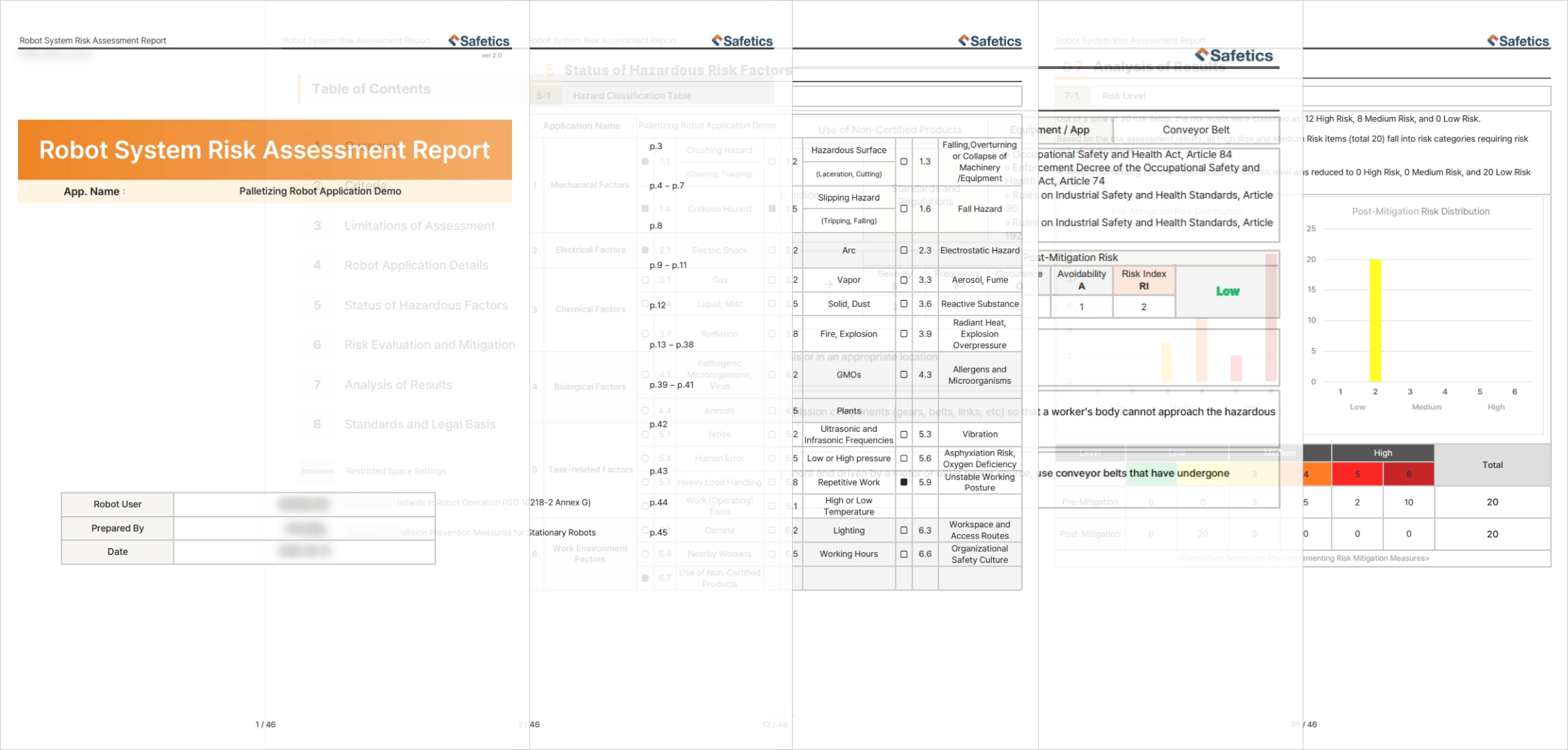
Risk assessment report example
Tip
Hazardous factors at the workplace should be regularly managed and reviewed. Additionally, continuous efforts are required to identify new risk factors and establish corresponding safety measures.