
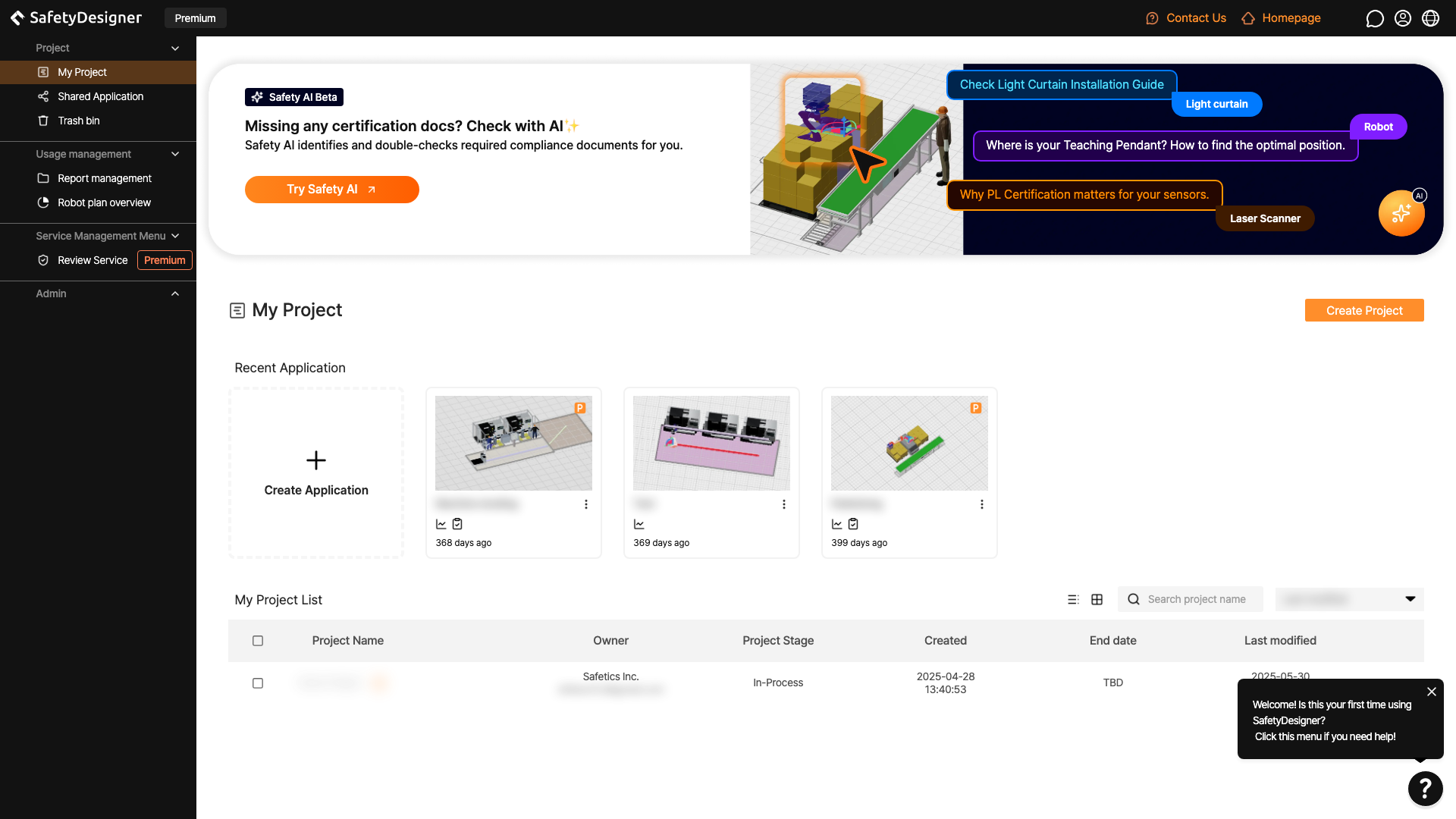
Once you have logged in, you can check the home screen (dashboard) of SafetyDesigner.
 1234567
Home screen
1. Home Screen Layout
① Project
Manage projects and applications, including shared applications. A trash bin menu is also available to view deleted projects and applications.
② Usage management
You can view the issuance history and download reports generated from your account, including Collision Risk Analysis Reports and Risk Assessment Reports. Additionally, you can check the current usage status of the robot’s paid plan contracted with Safetics.
③ Service Management Menu
This area shows paid service menus available in SafetyDesigner. Review Service opens review features that require Premium access.
④ Admin menu (group administrator page)
An exclusive page for group administrators, where you can edit group information and manage members, manage service use history, and view paid license contract information.
Tip
For more information on how to use the group management feature, see Group Management.
⑤ Recent Application
Create an application and view recently opened application cards.
⑥ My Project List
Create projects, search by project name, and sort the project list.
⑦ Help (?) Button
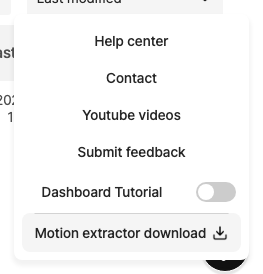
Help menu
Click the ? button at the bottom right of the screen to access Help center, Contact, YouTube videos, Submit feedback, the Dashboard Tutorial toggle, and Motion extractor download.
 8910
8910
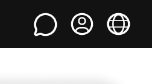
Header – Right menu
⑧ Comments
You can check the comments left on the shared application.
⑨ Profile Menu
Access the account information page, view the analysis report issuance status page, or log out from SafetyDesigner.
⑩ Change language
Change language of SafetyDesigner. (Korean(KR)/English(US))
 11
11
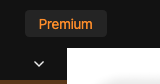
Header – Membership status
⑪ Membership Status
Depending on SafetyDesigner membership status, Free, Partner, or Premium will be displayed.