To design a 3D application and run the analysis, create the project and the application.
1. Create Project
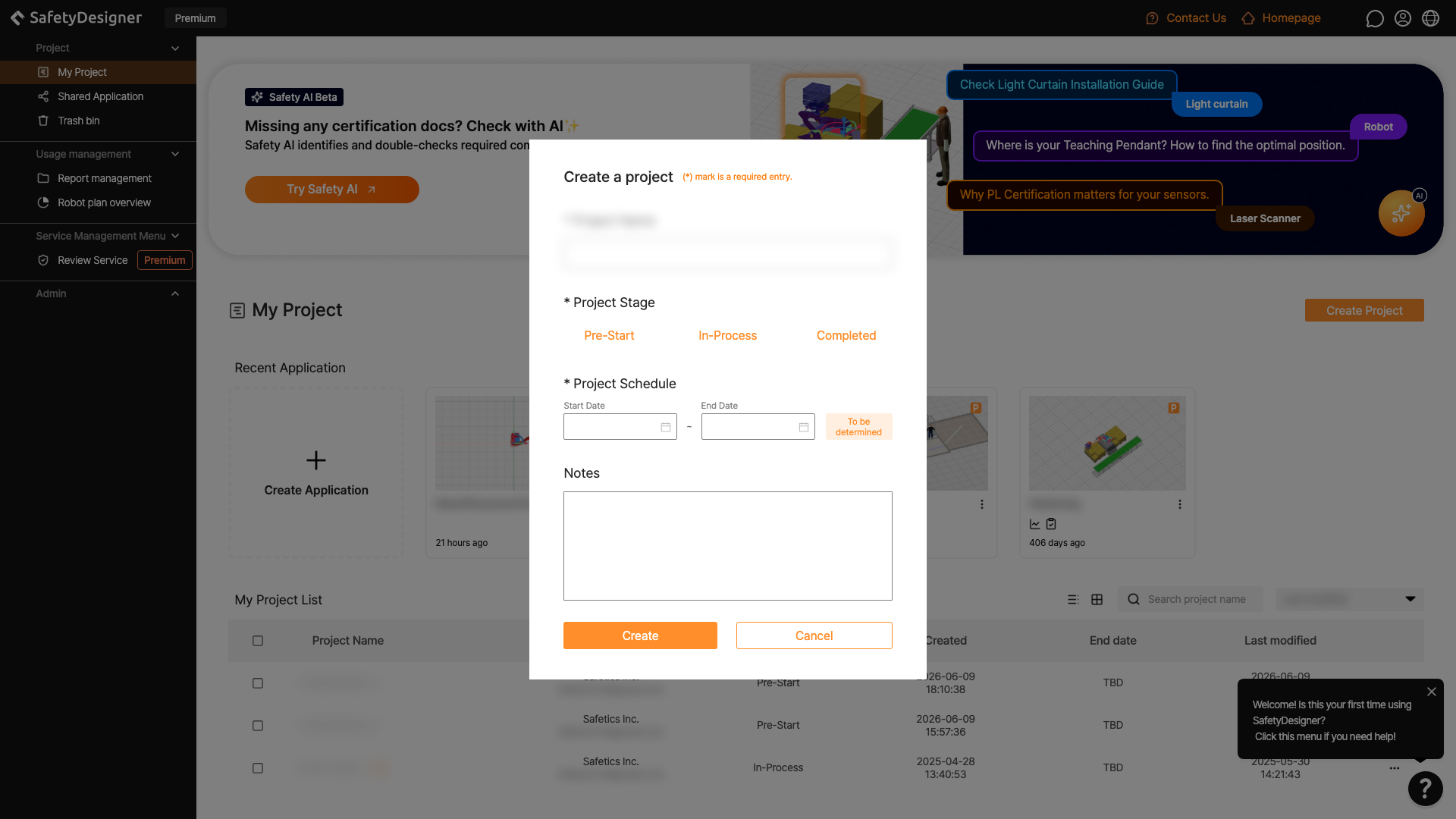
To proceed with the 3D application design, click Create Project in the upper right corner of the SafetyDesigner main screen to create a new project.
 1234
1234
Create a project screen
① Project Name
Type in project name.
Warning
The project name can be entered up to 20 letters, and please be aware that the name can be used in duplicate.
② Project Stage
Choose project stage. (Pre-Start/In-Process/Completed)
③ Project Schedule
Select project due date. If there are no due date yet, select To be determined.
④ Notes
If necessary, enter notes related to the project.
2. Create Application
‘Application’ in SafetyDesigner means a workspace where you can design a 3D collaborative robot application and run a collision safety analysis, or a workspace where you can perform a risk assessment of an industrial robot (collaborative robot) cell.
Double-click the project you created to move to the project page, then click Create Application on the top right corner of the page to create a new application.
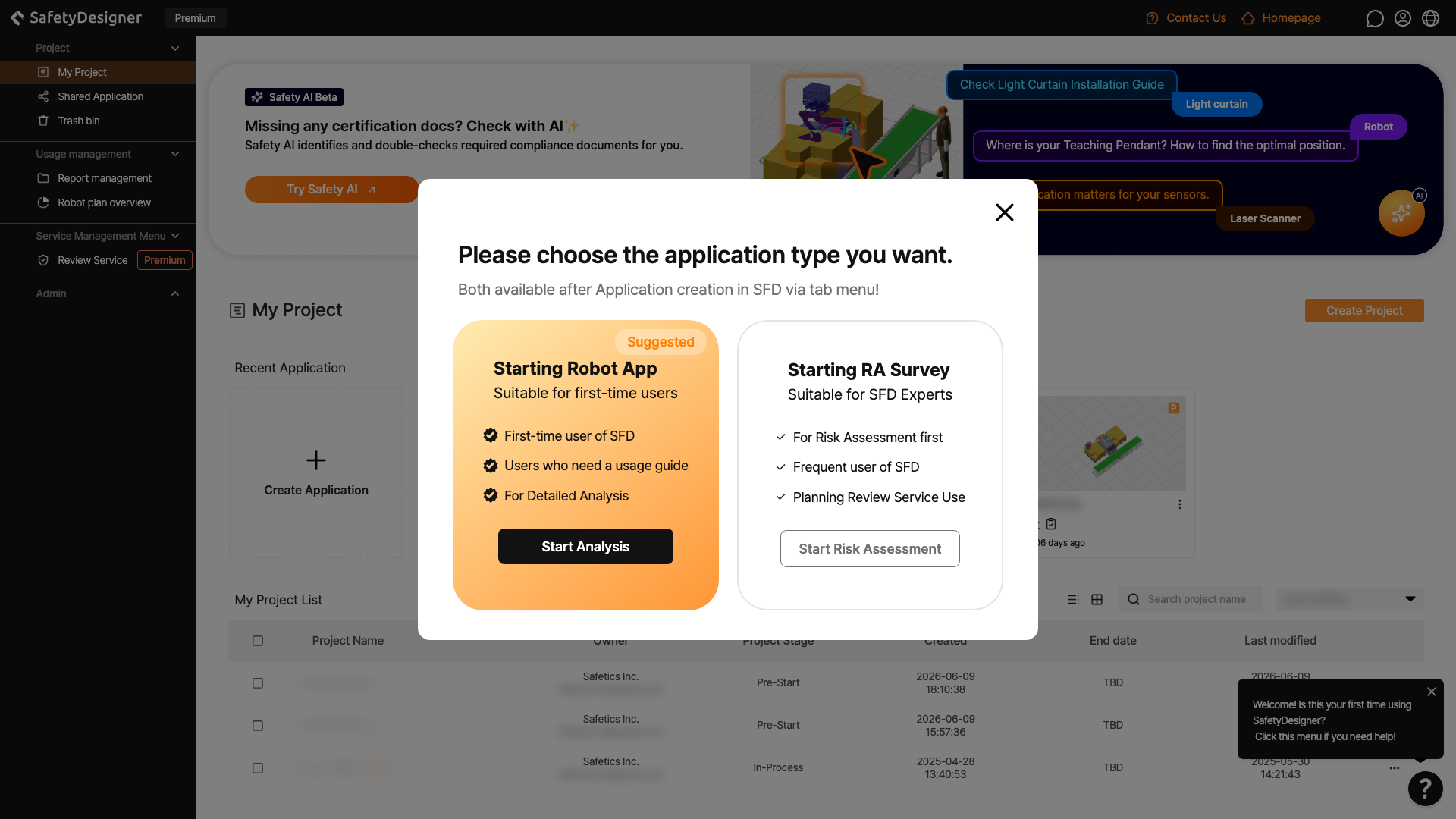
When you click the Create Application button, a popup appears where you can choose whether to start with a Risk Assessment or with a 3D application design and collision safety analysis.
 12
12
Create Application popup
① Starting Robot App (3D Application Design)
Create a new application to use SafetyDesigner’s 3D application design and collision safety analysis features.
② Starting RA Survey (Risk Assessment)
Create a new application to perform a SafetyDesigner risk assessment for an industrial robot (collaborative robot) application.
2-1. Create Application (3D Application Design)
 1234
1234
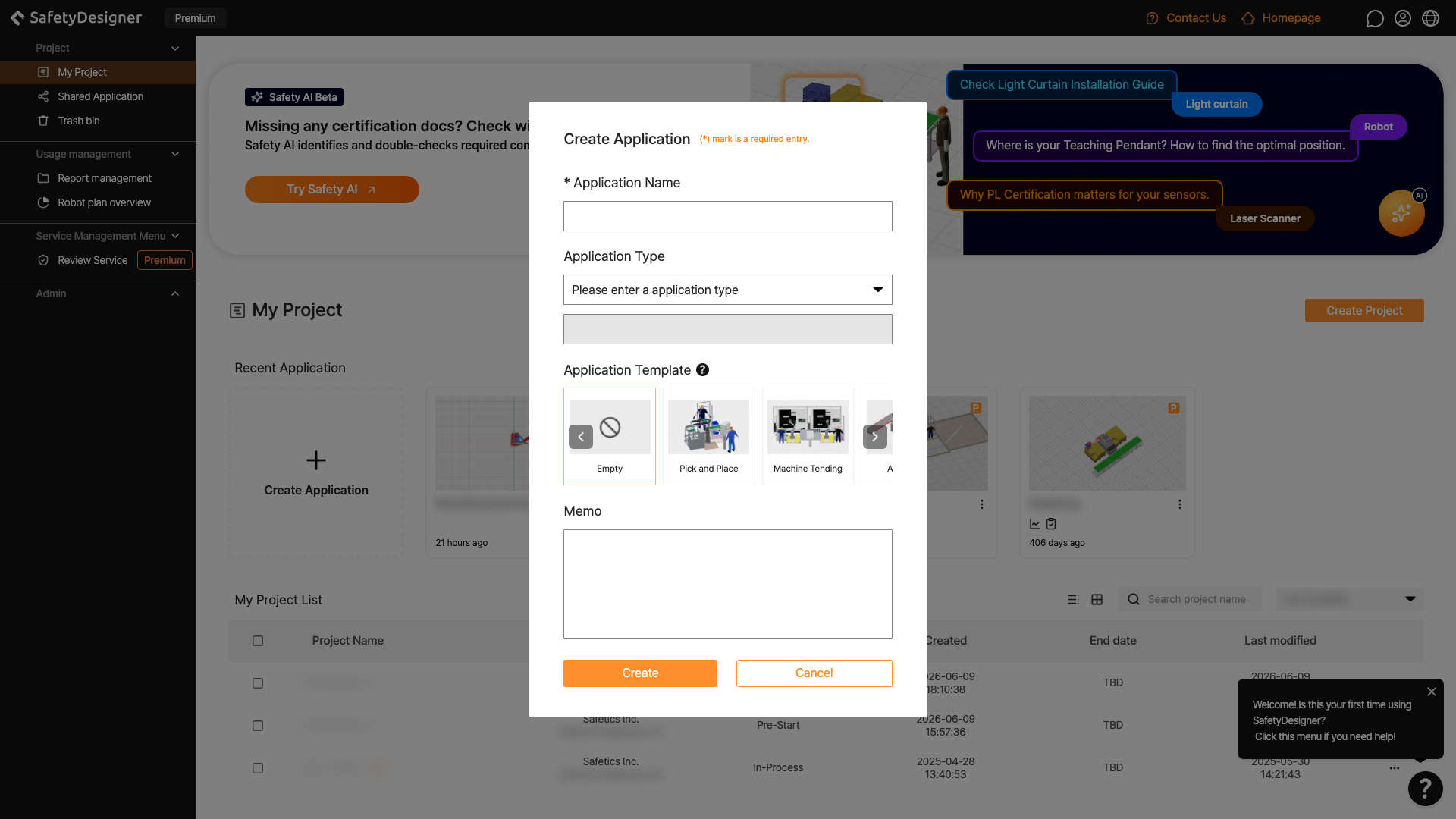
Create Application – 3D Design
① Application Name
Type in application name.
Warning
The application name can be entered up to 50 letters, and please be aware that the name can be used in duplicate.
② Application Type
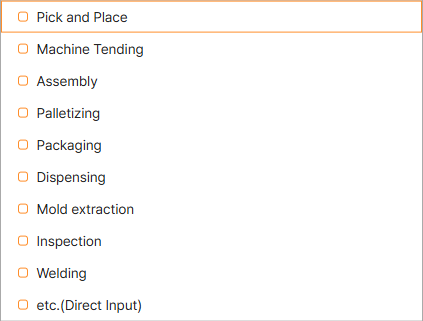
Application Type list
You can choose or type in application type. If typed in, you can enter up to 20 letters.
Multiple application types can be selected at the same time.
③ Application Template
Bring the default template for the selected type at the time of application creation.
④ Memo
If necessary, enter notes related to the application.
2-2. Create Application (Risk Assessment)
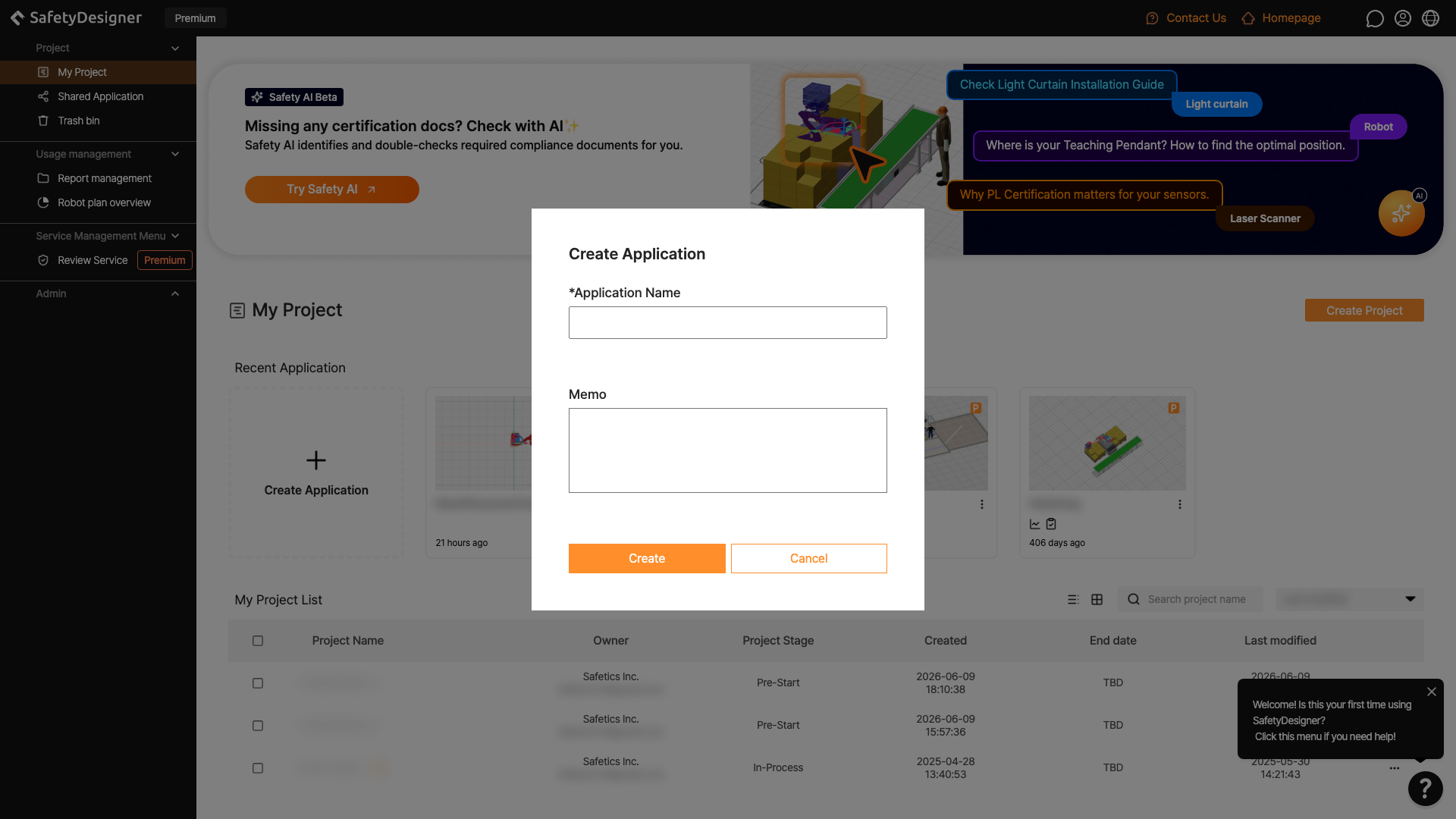 12
12
Create Application – Risk Assessment
① Application Name
Type in application name.
② Memo
If necessary, enter notes related to the application.