
Application sharing feature is to share the application you created with others. You can send sharing mails to anyone, and those who received the mail can easily access the application page by entering their email address without signing up for membership in SafetyDesigner.
Application sharing procedures based on user rating
- Free Membership: Free members are free to share applications and get them shared.
- Paid Membership: Among paid members, members of group vary by grade whether they need approval from group’s admin or not.
| Rating | Approval Status |
|---|---|
| Member | Group Outsiders: Share Applications after group administrator approval Group Insiders: Share applications immediately without approval |
| Manager | Group Outsiders, Insiders: Share applications immediately without approval |
| Administrator | Group Outsiders, Insiders: Share applications immediately without approval |
There are two ways to share your application with others.
1-1. Application Sharing on the Main Page
Let’s learn how to share an application on the main page of SafetyDesigner through a tutorial.
- Step 1. Open a project with an application you want to share in the My project.
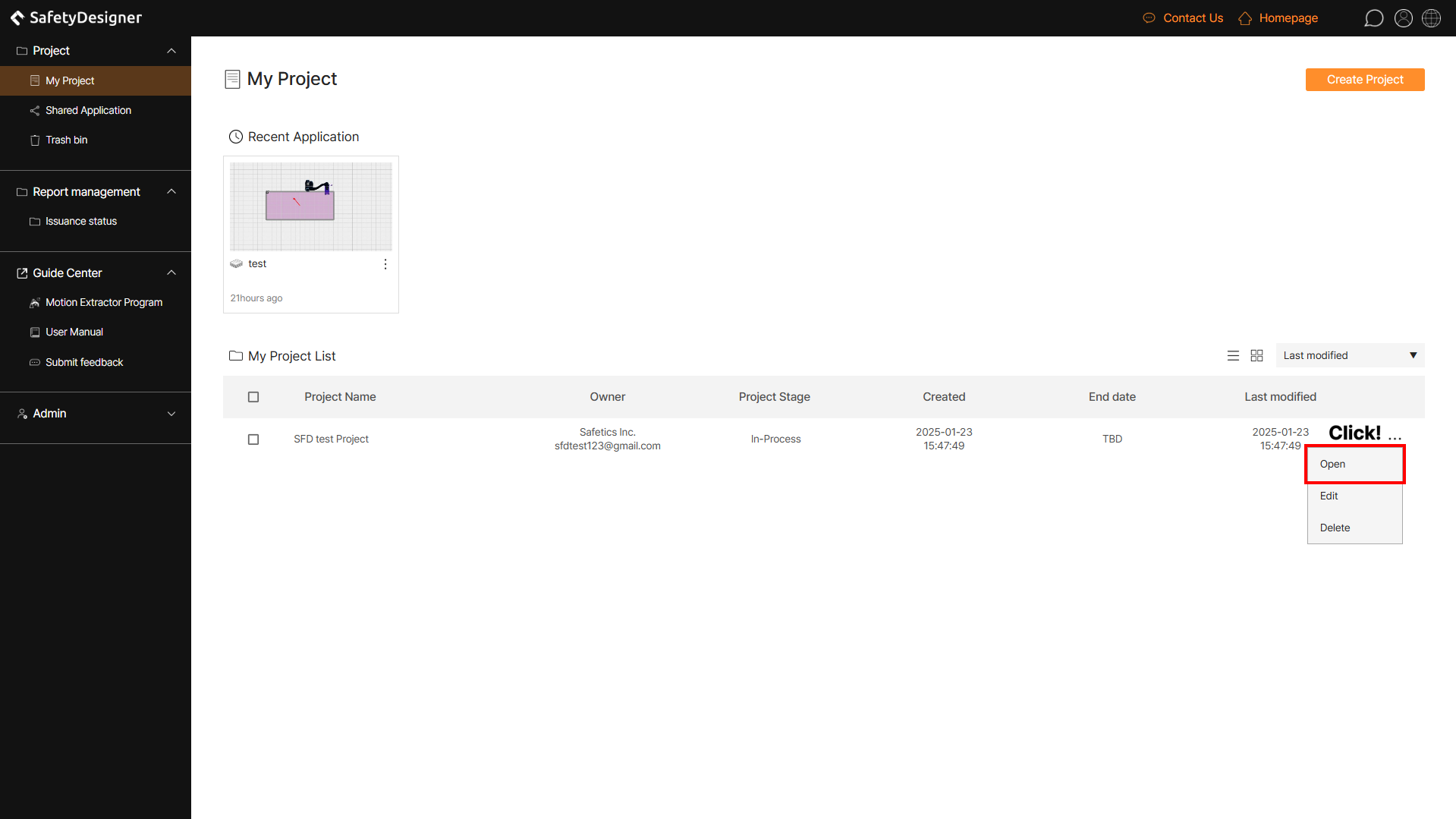
Main page – Open project
- Step 2. Click View More for the application you want to share and press the Share button.
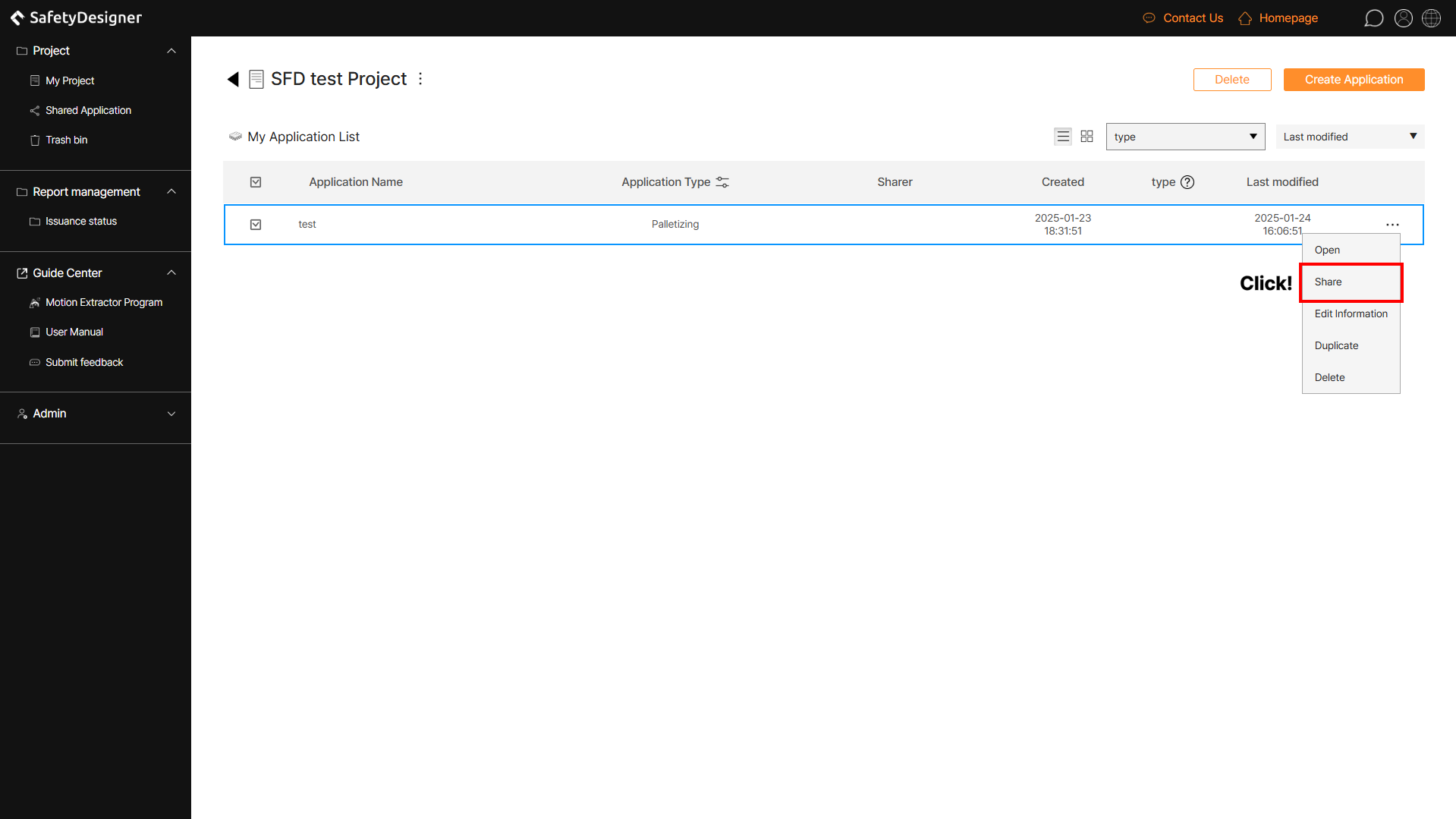
Application list – Click Share
- Step 3. Enter the email address you want to share and press the Add button.
- Step 4. If you have verified that the email you entered in your share standby account is registered successfully, click the Share button.
- Step 5. Click Shared Account to see the mail you shared is registered in the list.
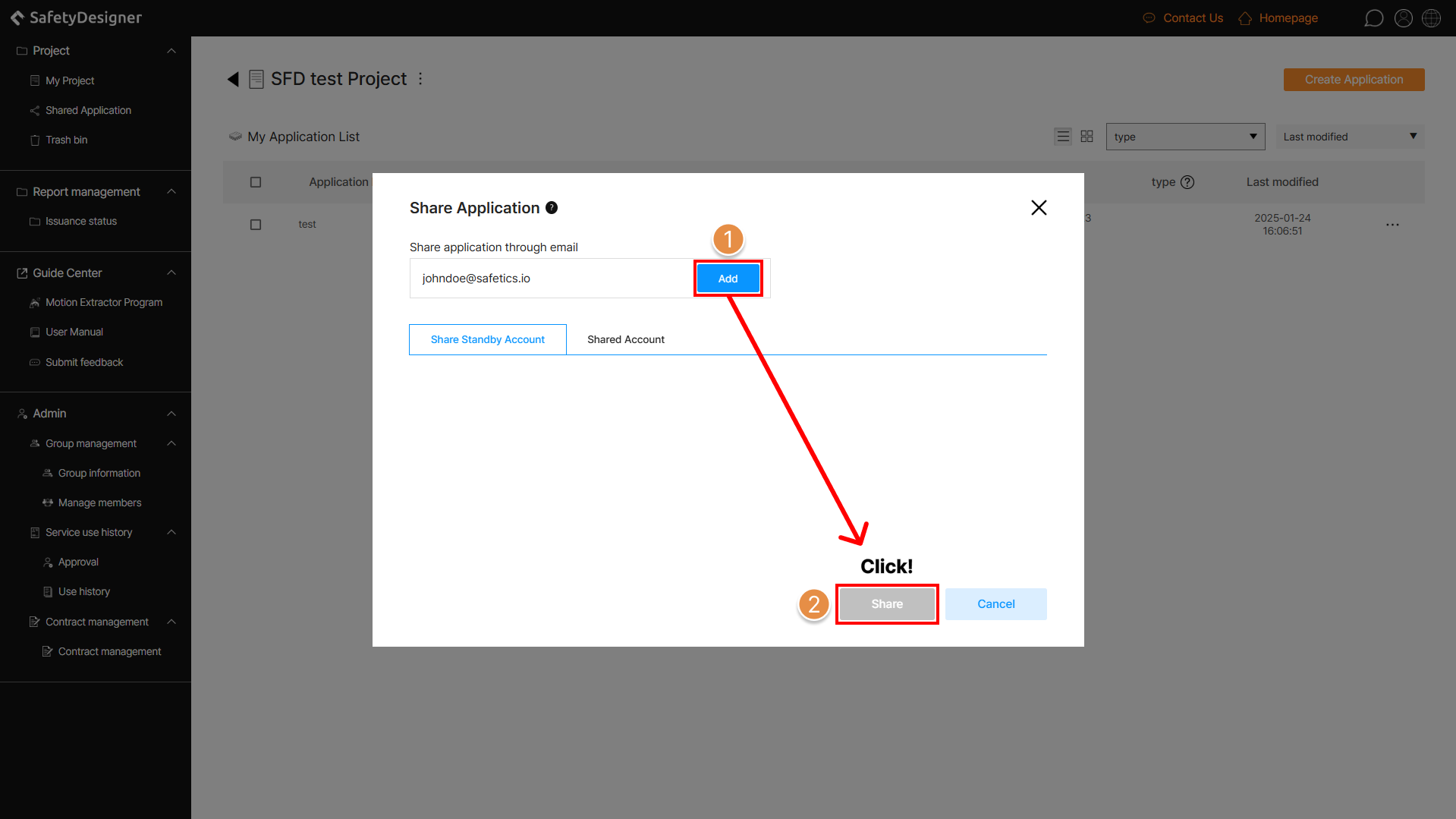
Share application screen
1-2. Application Sharing on 3D Screen
- Step 1. Open the application you want to share and enter the 3D screen.
- Step 2. Click the Share Application button on the right side of the top.
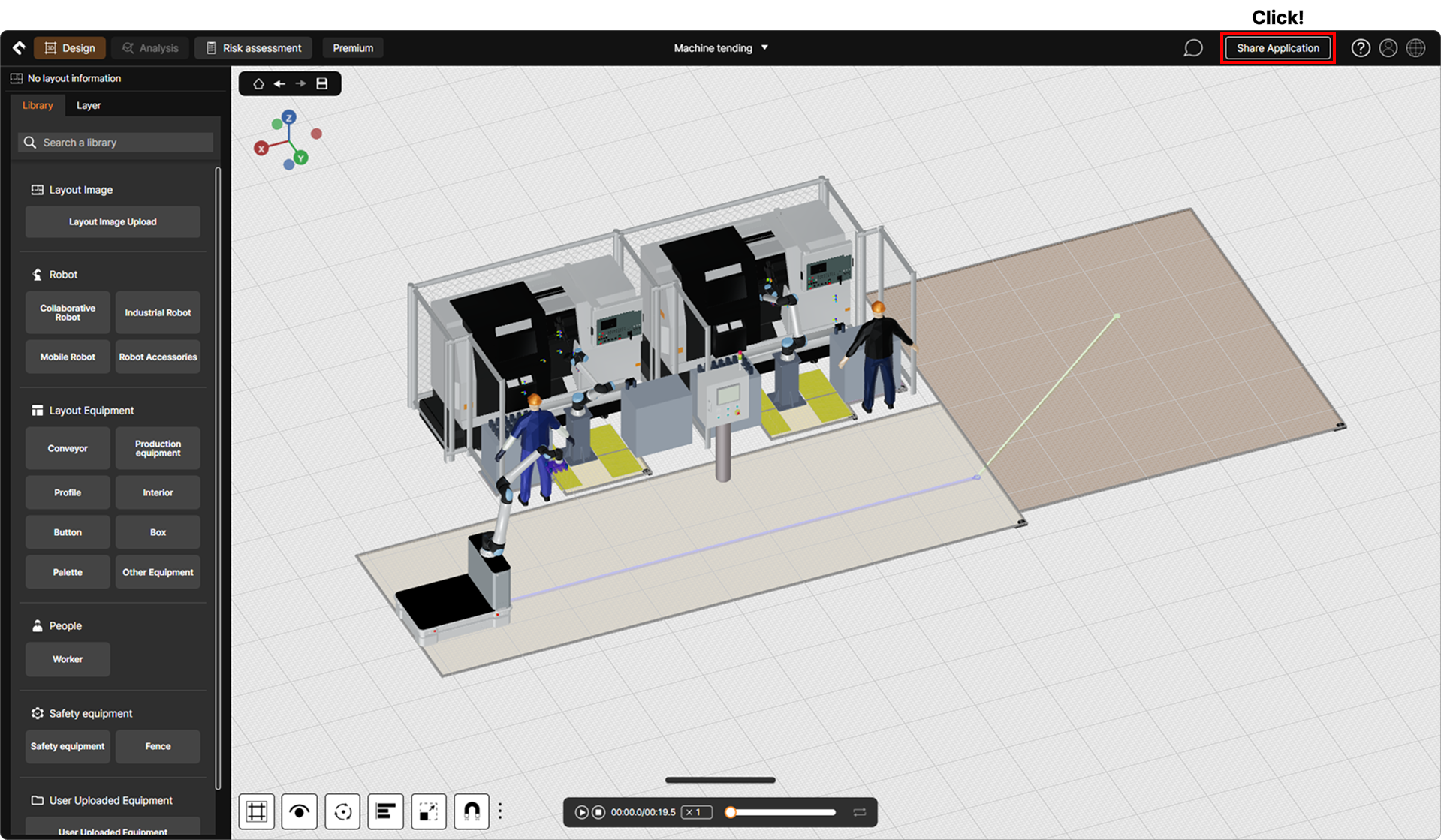
3D screen – Click share application
- Step 3. Enter the email address you want to share and press the Add button.
- Step 4. If you have verified that the email you entered in your share standby account is registered successfully, click Share.
- Step 5. Click Shared Account to see the mail you shared is registered in the list.
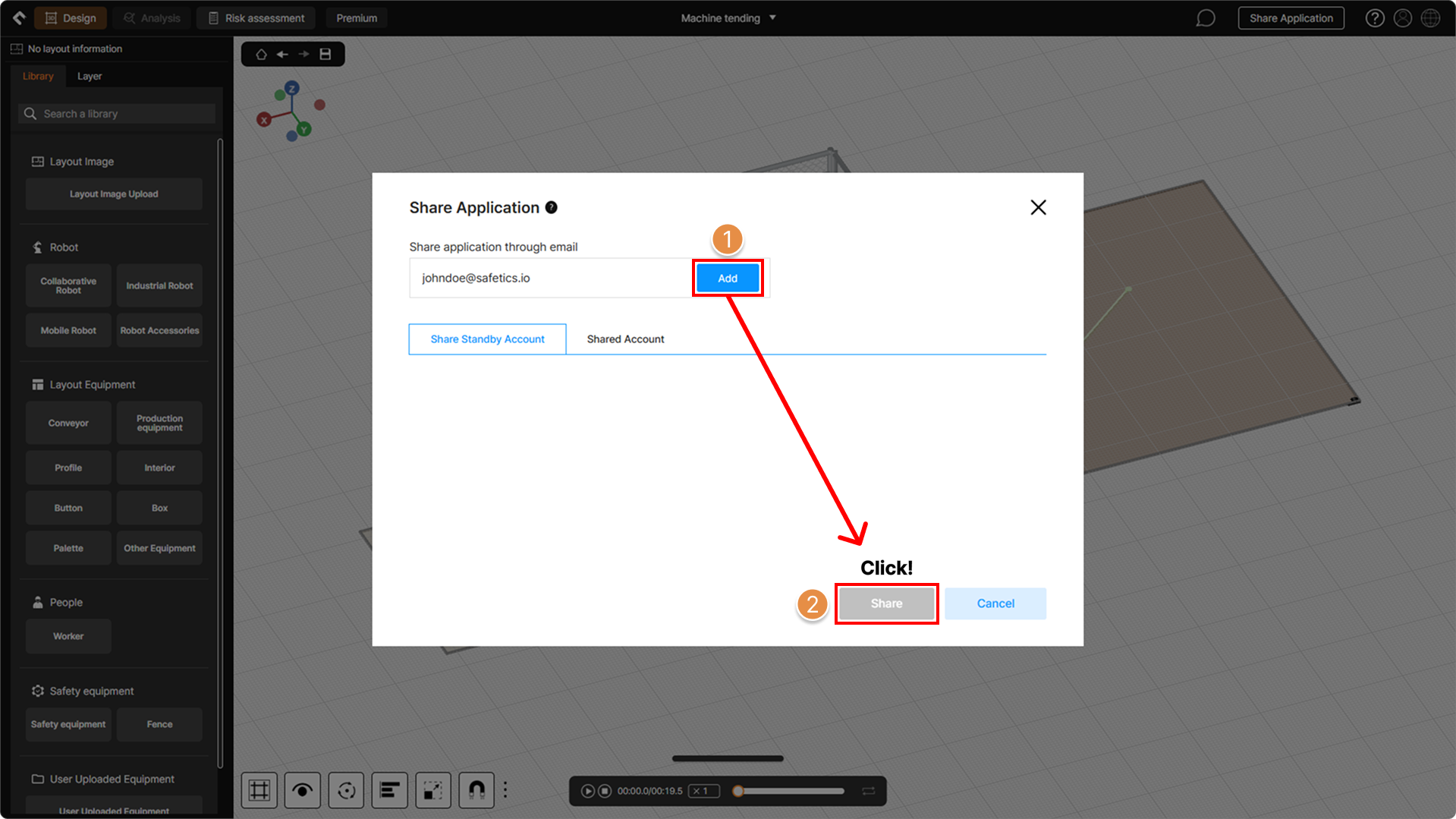
3D screen – Share application
2. Open Shared Application
The shared application link will be sent by mail.
- Step 1. Click the link button to open the application.
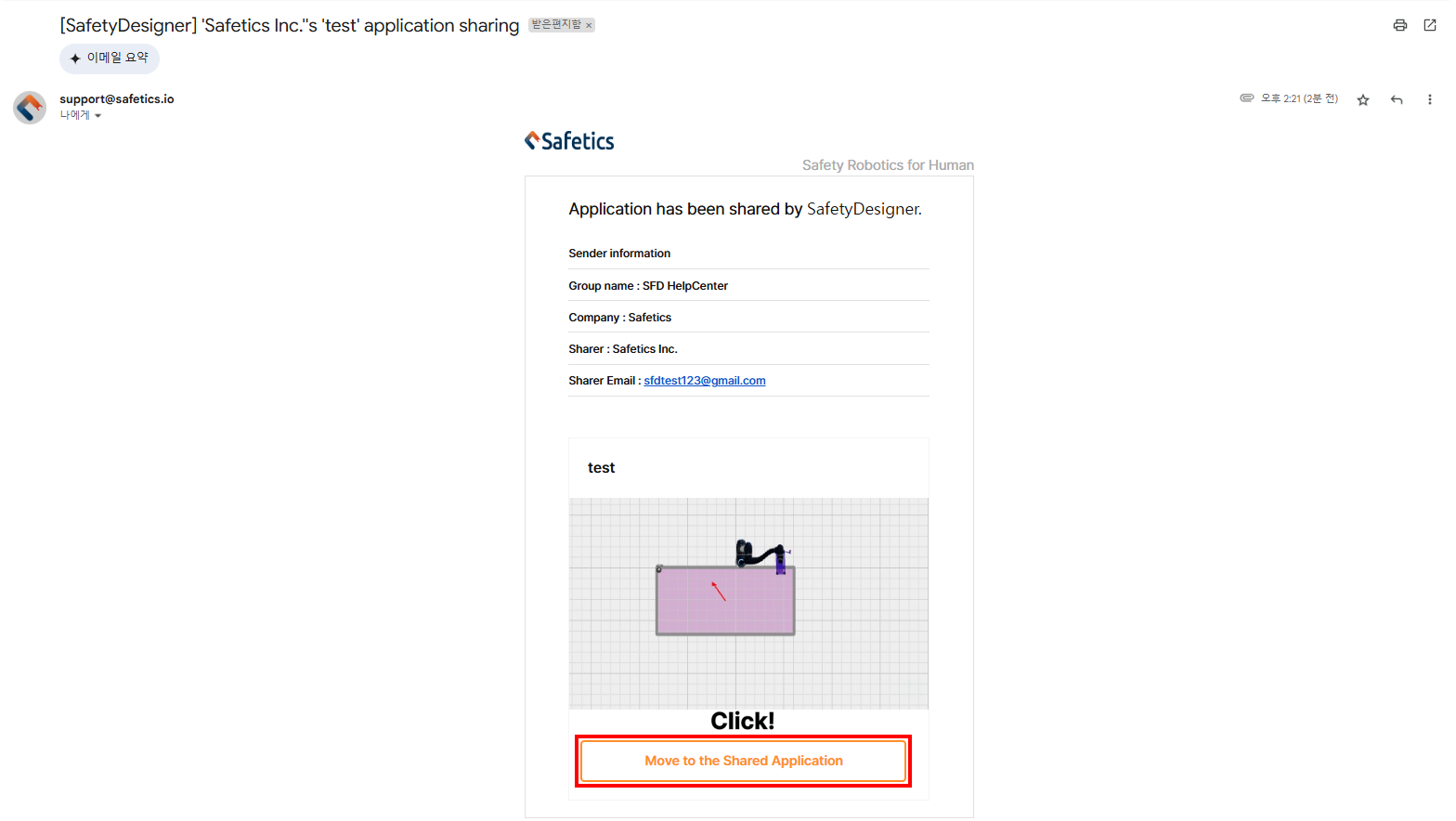
Shared application email
- Step 2. Enter your email address to access the application.
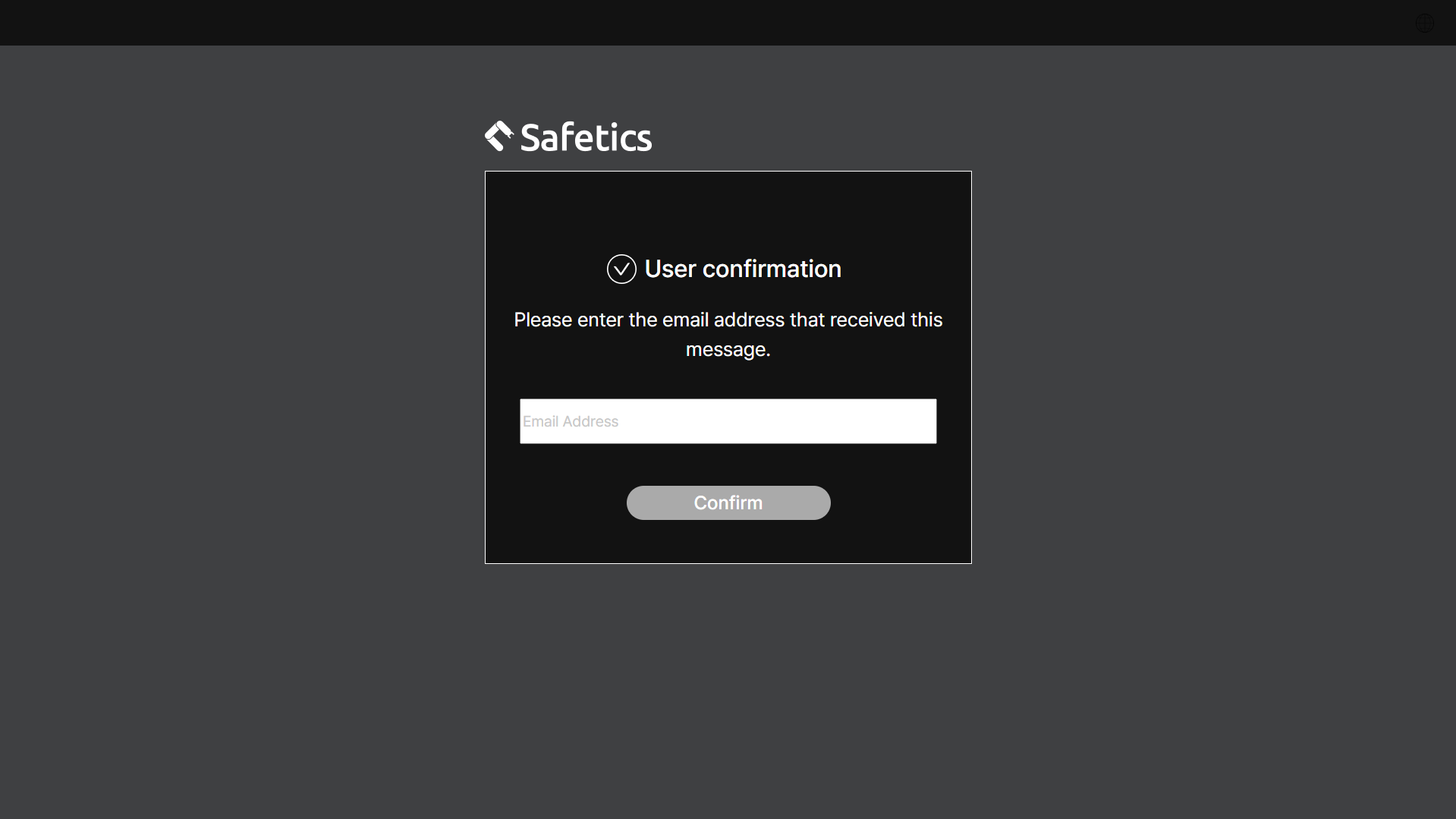
Shared link access page
3. Manage Shared Application
The project menu on the main page has the Shared application menu that lets you manage the send/received application.
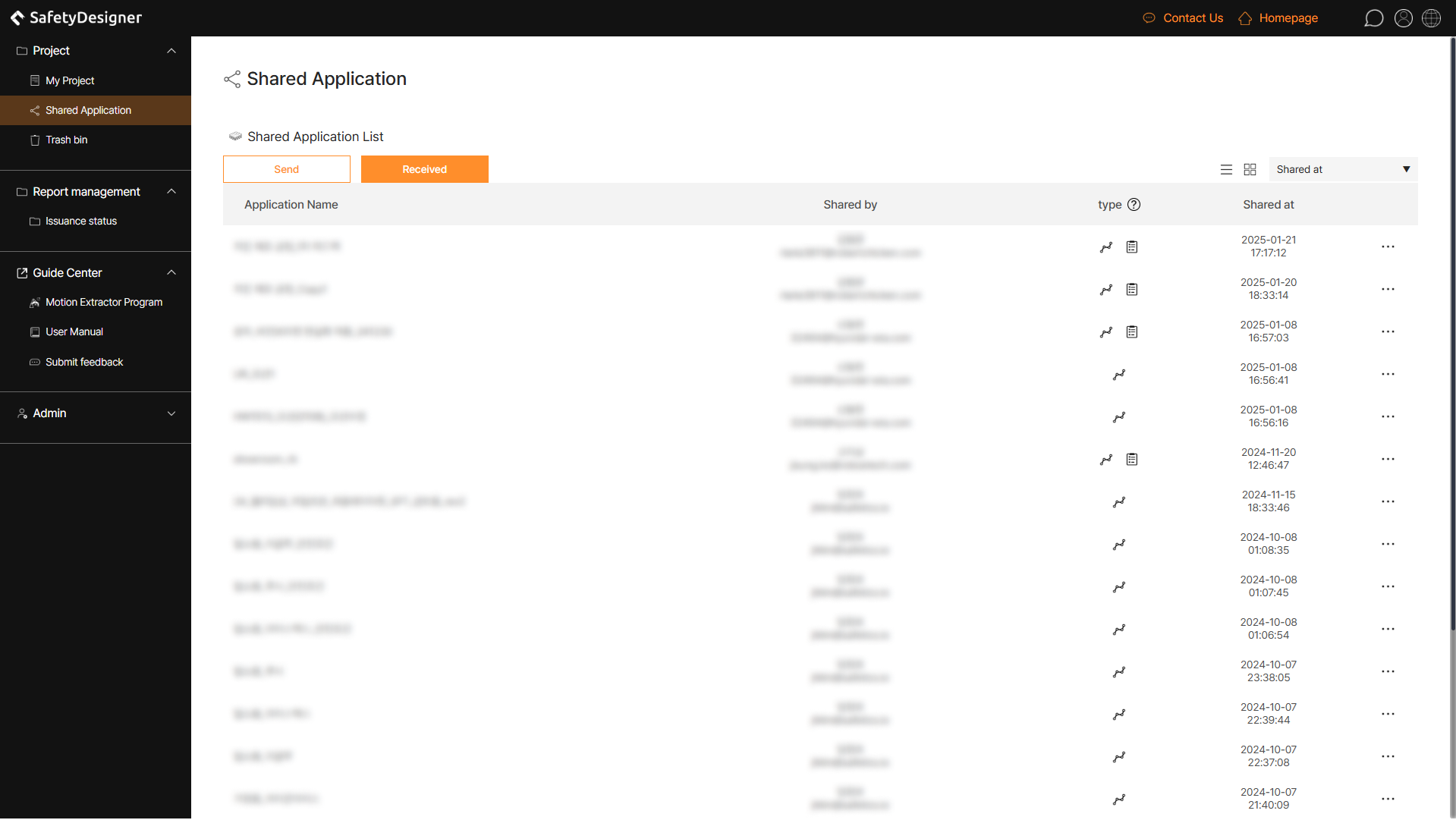
Main Page – Project – Shared application