
Manager or higher
Change the date & time, recipients, or form of a “Scheduled” send that has not gone out yet, or delete it.
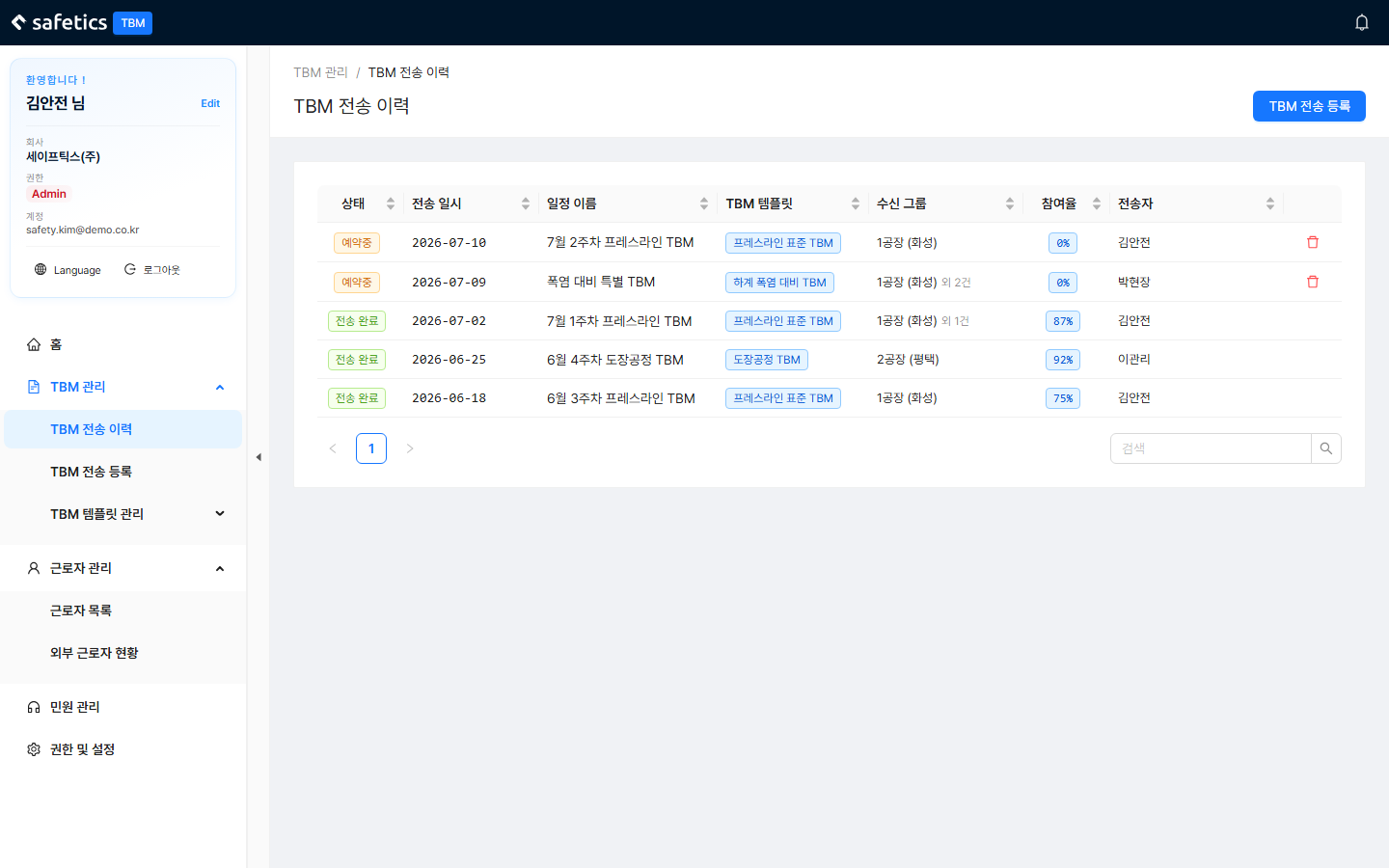
TBM send history – the Status column separates “Scheduled”/”Sent”
- In TBM Send History, find a row whose status is “Scheduled”. You can search by schedule name, template name, or site name.
- Click the row to open its details.
- Edit what you need:
- Change the send date & time — pick it from the calendar (applied immediately)
- Add or remove recipient groups
- Swap the form, or click Edit to open the form editor
- Add Recipients — search and add several people at once; remove individuals with the trash icon
- When you are done, click Save. To cancel the send entirely, click Delete.
Danger
A sent TBM cannot be edited or deleted.
In the history list as well, only “Scheduled” rows can be deleted with the trash icon. (Alert message: “Delete failed. A sent TBM cannot be deleted.”)