
Manager or higher
Create a reusable form for TBM sends. You cannot schedule a TBM send without at least one form, so this is the first thing you need to do.
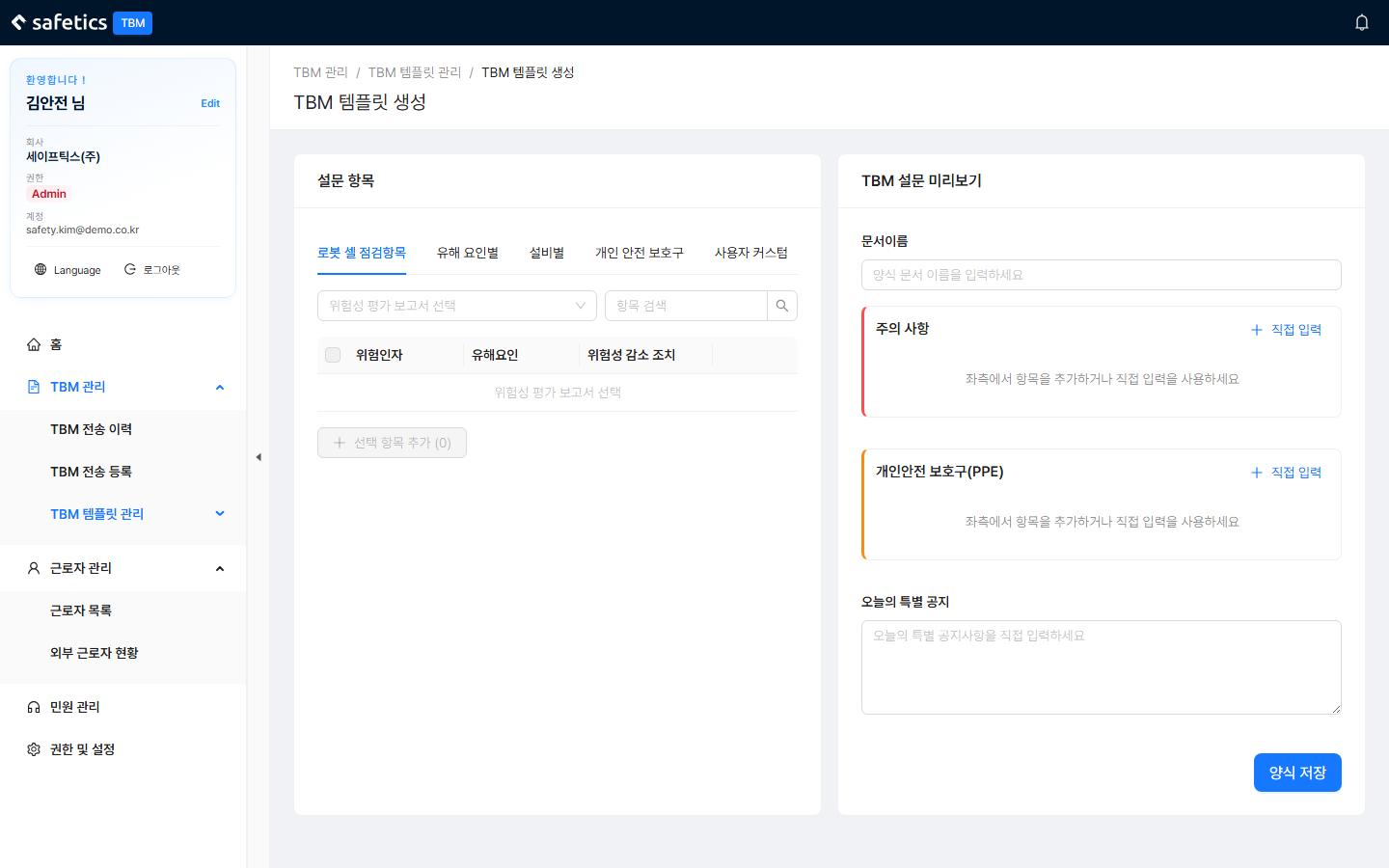 123556
Create Form – left: survey item data / right: form preview
The left pane shows the survey item data, and the right pane shows a preview of the form you are building.
The item data is organized into 5 tabs by source:
| Tab | Description |
|---|---|
| Robot Cell Check Items | Items imported from a Safetics Risk Assessment (RA) report. Select an RA report created in SafetyDesigner to load its survey. If you have not used our SafetyDesigner-RA service, there are no items to load. |
| By Hazardous Factor | Standard items organized by hazardous factor |
| By Equipment | Standard items organized by equipment |
| Personal Protective Equipment | PPE (protective equipment) items |
| Custom Items | Items you create yourself — the only editable tab (supports 3.1 Bulk-Add Form Items (Excel)) |
- Pick a tab, then find the items you need with the sub-category filter and search.
- Use the buttons on an item to add it to the “Precautions” or “PPE” section. You can also check several items and add them all at once with Add Selected Items.
- For content not in the list, add a blank item with Enter Directly and write it in.
- Use the trash icon to remove any item you added by mistake.
- In the preview on the right, enter the document name and special notice.
- Click Save Form.
Tip
Items added to a form carry a source tag ([Risk Assessment] [By Hazardous Factor] [By Equipment] [Personal Protective Equipment] [User Input]) so you can tell where each item came from.