
All
The screen is made up of 3 areas: top header, left sidebar, and center content.
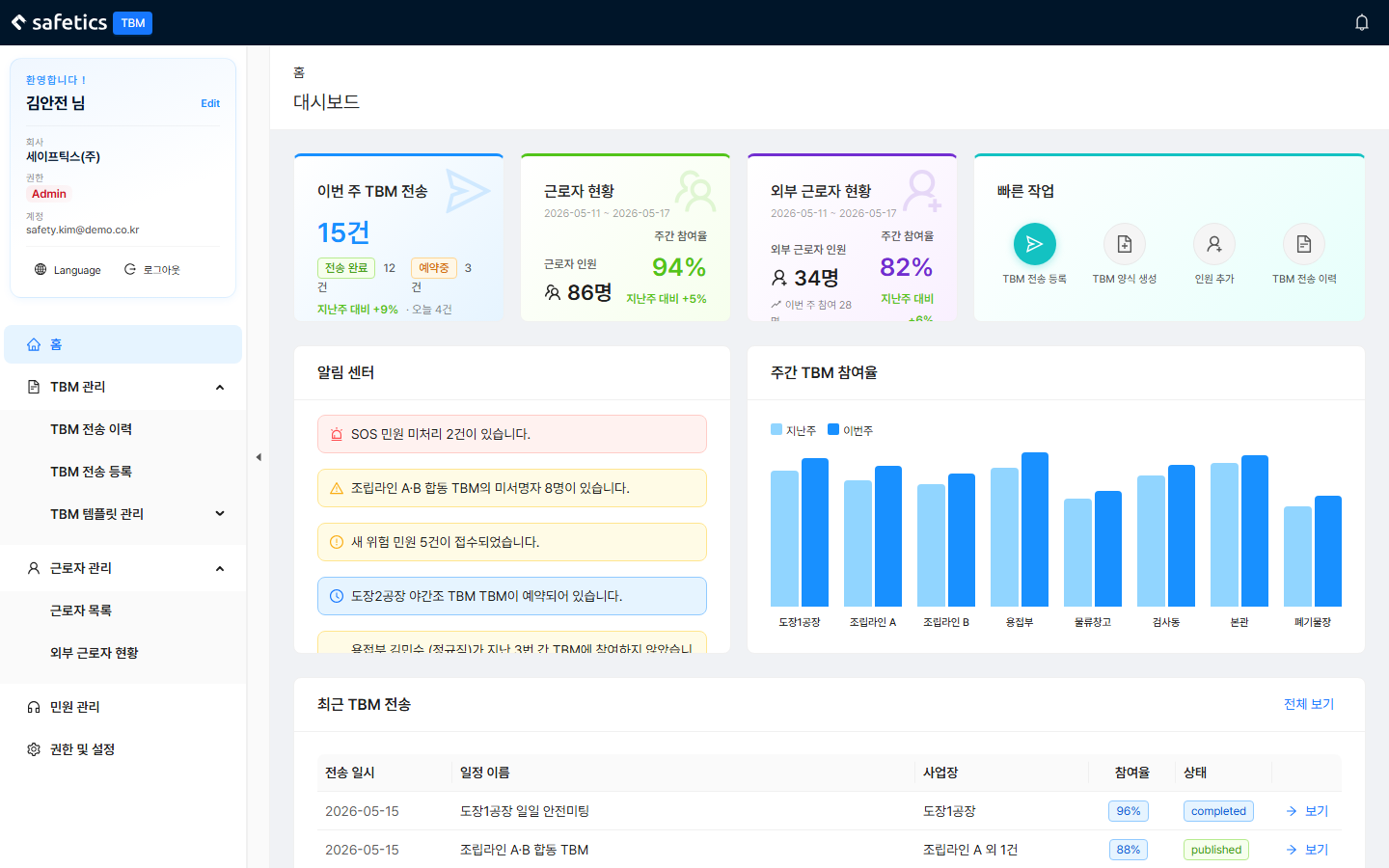
Home (dashboard) – the first screen after login
Top Header
- Notification bell: refreshes automatically every 30 seconds. Shows SOS / work stop / new complaint / new reply notifications. You can dismiss them one by one (X) or use Clear All.
- On narrow screens (tablet or mobile), open the menu with the ☰ button.
Left Sidebar
- Menus: Home / TBM Management / Worker Management / Complaint Management / Permissions & Settings — the menus you see depend on your permissions (see 1.3 Check Your Permissions).
- User card at the bottom: name, company, permission badge, and account. Switch languages with Language; log out with the Log Out button.
- You can narrow the sidebar with the collapse/expand toggle.
What You See on Home (Dashboard)
- Metric cards: this week’s TBM sends / worker status / external worker status / quick actions
- Quick actions: Schedule TBM Send · Create TBM Form · Add People · TBM Send History — one click takes you there
- Notification center: SOS, unsigned, not-participated, and scheduled-send alerts. Click one to go to the related screen
- Weekly TBM participation rate: last week vs. this week graph by site
- Recent TBMs: list of recent sends. View opens the details; View All goes to the history page