
Manager or higher
Pick a form and send (schedule) a TBM to your workers. This is the core feature you will use most often.
 1234567
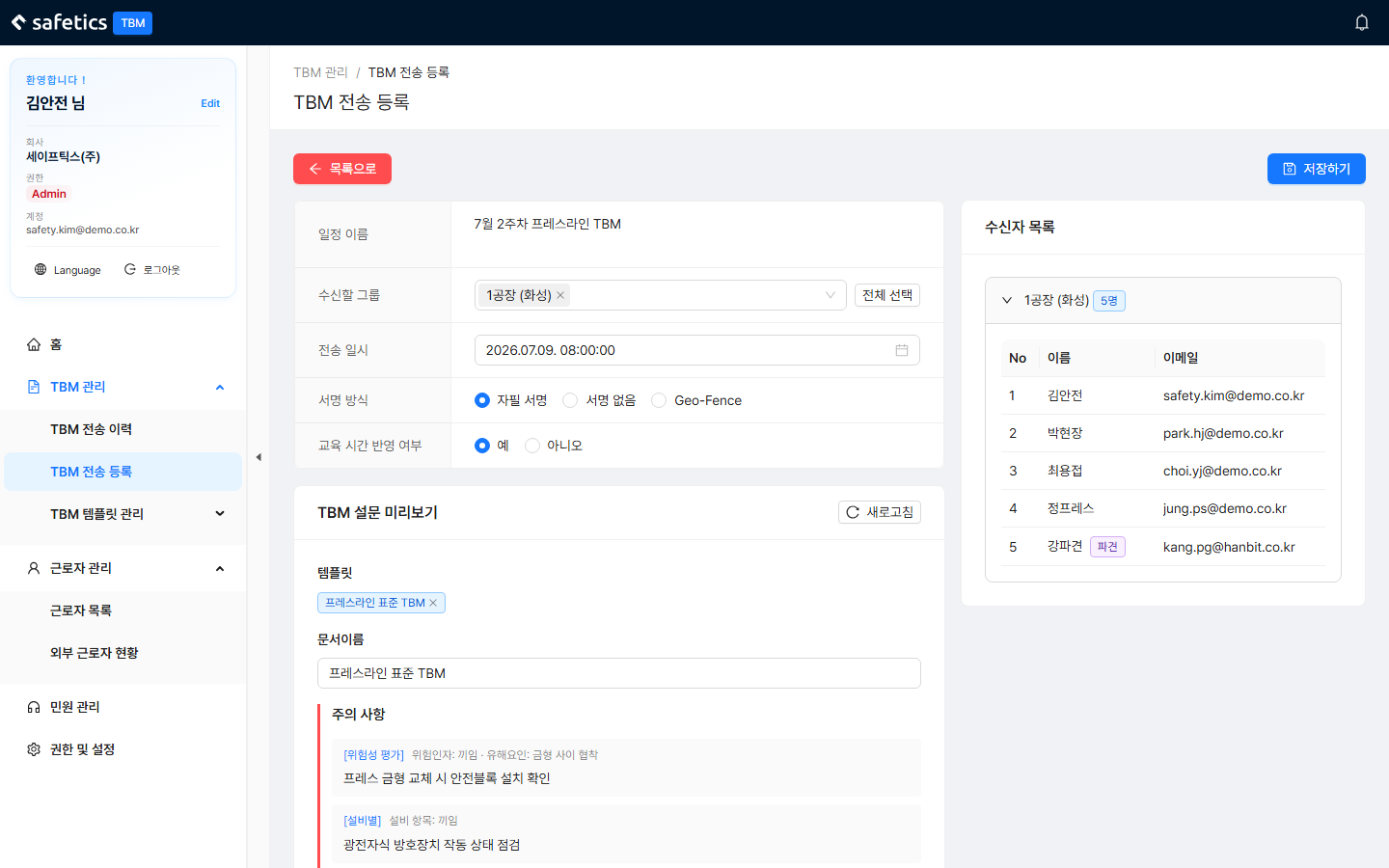
Schedule TBM Send – left: settings & preview / right: recipient list
- Enter the schedule name. (e.g., “March Week 2 Press Line TBM”)
- Select the recipient groups (sites). You can select more than one, and there is a Select All button. Once selected, the recipient list appears on the right, grouped by site.
- Select the send date & time. Past times cannot be selected; the default is the configured time on the next day.
- Select the signature method: handwritten signature / no signature / Geo-Fence (submission allowed only within the plant’s GPS range).
- Choose whether to count the TBM as training hours (Yes/No).
→ Some workplaces count TBM participation time as training hours; this setting is for those cases.
→ This feature requires separate setup, so please contact us to enable it. - Select the TBM form (template). A preview of the precautions, PPE, and special notice appears below.
You can also edit the document name and special notice right on this screen. - Click Save. The message “TBM saved.” appears and you are taken to the send history.
Tip
An Admin can change the defaults for the signature method, training hours, and send time in 5.3 Default TBM Settings.
Warning
- You cannot send without at least one form. Complete 2.1 Create a Form (Template) first (the Create Form button on this screen also takes you there).
- In the recipient list on the right, people with a purple “Dispatch” badge are dispatched workers.