
Skip to content
Help Center

Help Center

Safetics
⌘K
Home Open SafetyDesigner
🇺🇸 English
English 한국어

TBM App

  • Key Terms & Concepts
  • 1.1 Installation & Requirements
  • 1.2 Log In — Regular Workers (ID Login)
  • 1.3 Log In — External Workers (Access Code Login)
  • 1.4 Biometric & Auto Login
  • 1.5 Understanding the Layout
  • 1.6 Select a Site (Multiple Sites)
  • 2.1 Start Today’s TBM
  • 2.2 Answer the Checklist
  • 2.3 Complete Participation — Signature
  • 2.4 Complete Participation — Location Check (Geo-Fence)
  • 2.5 View Past TBM Records
  • 3.1 Submit a Suggestion
  • 3.2 View & Reply to Suggestions
  • 3.3 Accept/Decline Dispatch Invites
  • 3.4 Notification Settings
  • 3.5 Change Language (Korean/English)
  • 3.6 Log Out & Delete Account
  • 4.1 Report a Hazard
  • 4.2 Emergency SOS
  • 4.3 Request a Work Stop
  • 4.4 When You Can’t Log In
  • 4.5 When Location Check (Geo-Fence) Fails
  • A. Frequently Asked Questions (FAQ)
  • B. Features by User Type
  • C. Glossary
  • D. Error Message Reference
← Back

2.2 Answer the Checklist

All

Read the checklist items one card at a time and respond with “Confirmed” or “Issue Found”.
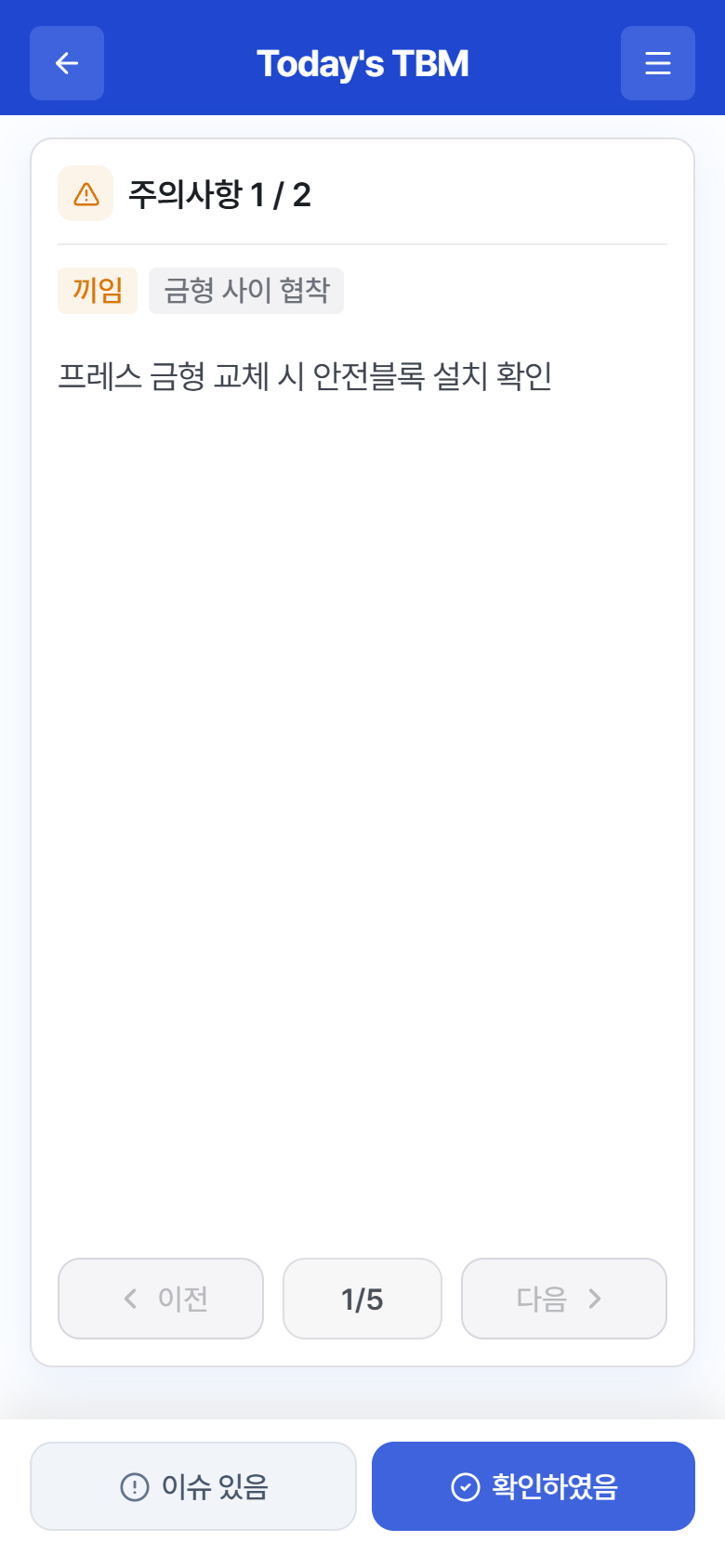
Checklist – review items one card at a time (bottom: Issue Found / Confirmed)

Checklist – review items one card at a time (bottom: Issue Found / Confirmed)

  1. Read the item shown on the card. The category and number appear at the top (e.g., Precautions 1 / 3), and some items carry risk factor / hazardous factor tags.
  2. If everything is fine, tap Confirmed (blue). A “Confirmation complete” message appears briefly and the next item is shown.
  3. If the actual site conditions do not match the item or there is a problem, tap Issue Found (gray). “Issue reported” is displayed, and the item is automatically submitted to the Admin as a TBM issue.
  4. If you tapped the wrong button, you can go back with Back and respond again. Next is enabled only after you respond.
  5. Once you have responded to every item, you move on to completing participation — depending on the signature method: 2.3 Complete Participation — Signature / 2.4 Complete Participation — Location Check (Geo-Fence) / confirm only (a single tap).

Tip

Anything you report with “Issue Found” appears as “[TBM Issue]” under Suggestions, where you can track its action history (3.2 View & Reply to Suggestions).

← Previous2.1 Start Today’s TBMNext →2.3 Complete Participation — Signature
Safetics Safetics

Robot safety made simple

Product

SafetyDesigner Pricing

Guides

SafetyDesigner Guide TBM Guide

Resources

Insights FAQ Glossary

Company

Safetics Home Contact Us

Safetics Inc. · CEO : Heonseop Shin · Business Reg. No. 693-87-01568 · 2F, 43, Bongeunsa-ro 30-gil, Gangnam-gu, Seoul, Republic of Korea · Tel : 82-2-568-7985 · info@safetics.io

© 2026 Safetics, Inc.

Image you just passed