
Regular
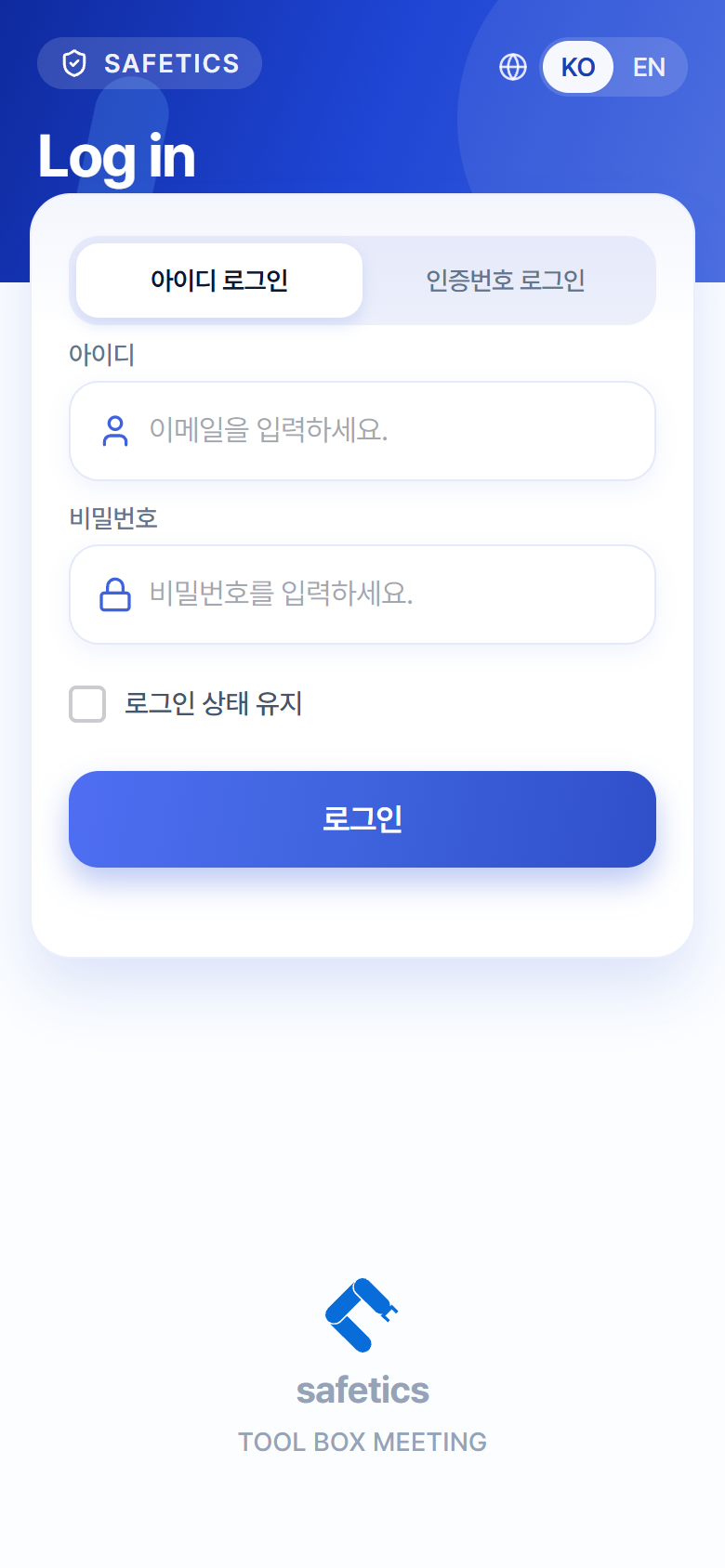
Log in with your email and password.
 12345
12345Login screen – “ID Login” tab
- Open the app and select the ID Login tab.
- Enter your email in the ID field. (Field hint: “Enter your email.”)
→ Your email and password are the same as your SafetyDesigner account. - Enter your password.
- To log in automatically from next time, check Stay Logged In.
- Tap Log In.
- Right after logging in, a biometric registration prompt may appear — see 1.4 Biometric & Auto Login. (You can skip it with Later.)
Tip
You can switch the login screen language with the KO/EN buttons at the top of the screen. If you cannot log in, see 4.4 When You Can’t Log In.