
Skip to content
Help Center

Help Center

Safetics
⌘K
Home Open SafetyDesigner
🇺🇸 English
English 한국어

TBM App

  • Key Terms & Concepts
  • 1.1 Installation & Requirements
  • 1.2 Log In — Regular Workers (ID Login)
  • 1.3 Log In — External Workers (Access Code Login)
  • 1.4 Biometric & Auto Login
  • 1.5 Understanding the Layout
  • 1.6 Select a Site (Multiple Sites)
  • 2.1 Start Today’s TBM
  • 2.2 Answer the Checklist
  • 2.3 Complete Participation — Signature
  • 2.4 Complete Participation — Location Check (Geo-Fence)
  • 2.5 View Past TBM Records
  • 3.1 Submit a Suggestion
  • 3.2 View & Reply to Suggestions
  • 3.3 Accept/Decline Dispatch Invites
  • 3.4 Notification Settings
  • 3.5 Change Language (Korean/English)
  • 3.6 Log Out & Delete Account
  • 4.1 Report a Hazard
  • 4.2 Emergency SOS
  • 4.3 Request a Work Stop
  • 4.4 When You Can’t Log In
  • 4.5 When Location Check (Geo-Fence) Fails
  • A. Frequently Asked Questions (FAQ)
  • B. Features by User Type
  • C. Glossary
  • D. Error Message Reference
← Back

4.3 Request a Work Stop

Home > Work Stop Request Card All

When it is too dangerous to continue working, immediately ask the Admin to stop the work.
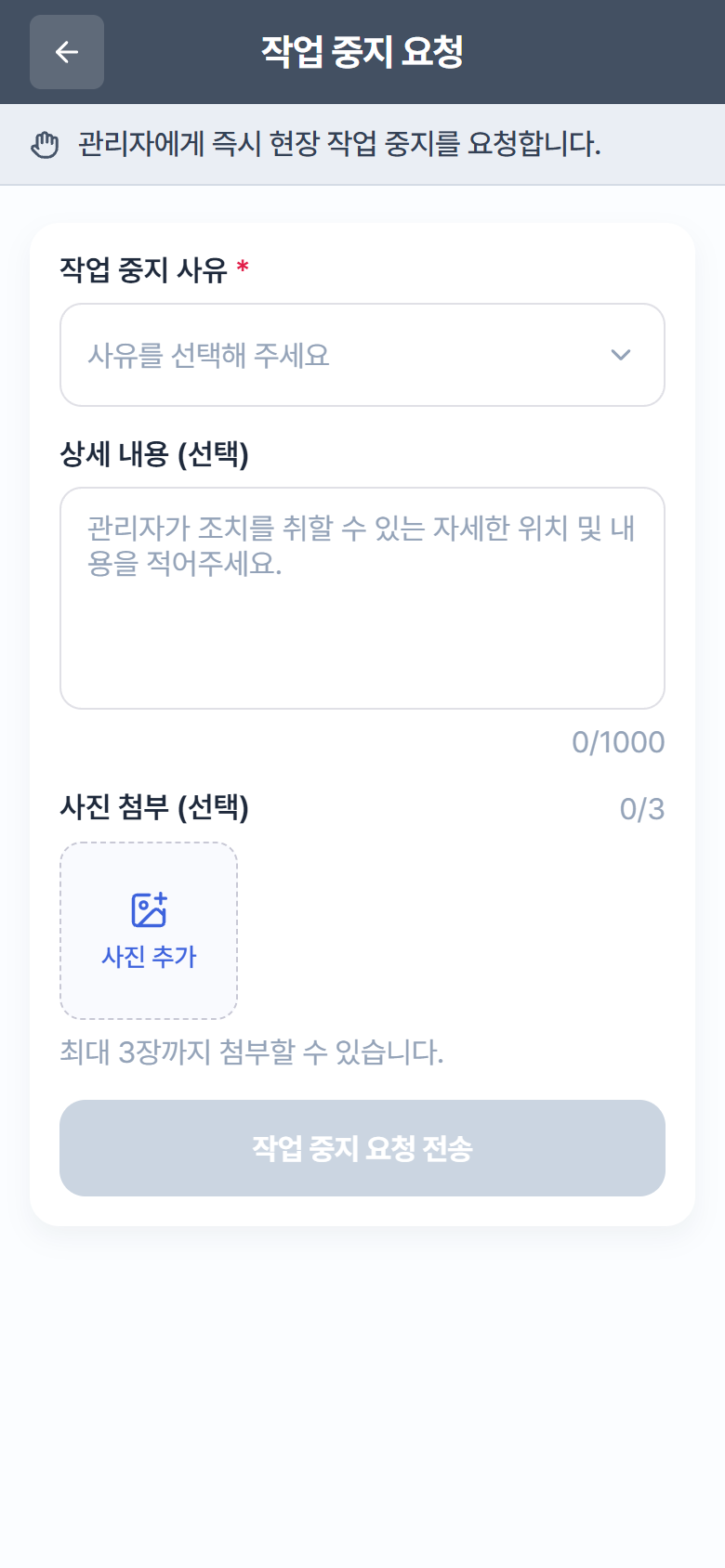
"Work Stop Request" – select a reason + attach photos

“Work Stop Request” – select a reason + attach photos

  1. On the emergency cards on Home, tap Work Stop Request (STOP, “Tap to request”).
  2. Select a reason — tap “Please select a reason” to open the list (e.g., “Fall risk: no safety harness, poor guardrails” — 24 preset reasons). If nothing fits, choose Enter Directly and write the reason yourself.
  3. In Details (optional), write “the specific location and details the administrator needs to take action”.
  4. If needed, use Attach Photos (optional) — up to 3.
  5. Tap Send Work Stop Request. A confirmation dialog “Your work stop request has been delivered to the administrator.” appears.

Tip

You can track the request’s status (Unresolved → In Progress → Resolved) in the Suggestions list. On the Admin web it appears as a top-priority work stop alert.

← Previous4.2 Emergency SOSNext →4.4 When You Can’t Log In
Safetics Safetics

Robot safety made simple

Product

SafetyDesigner Pricing

Guides

SafetyDesigner Guide TBM Guide

Resources

Insights FAQ Glossary

Company

Safetics Home Contact Us

Safetics Inc. · CEO : Heonseop Shin · Business Reg. No. 693-87-01568 · 2F, 43, Bongeunsa-ro 30-gil, Gangnam-gu, Seoul, Republic of Korea · Tel : 82-2-568-7985 · info@safetics.io

© 2026 Safetics, Inc.

Image you just passed